

Getting Started
Welcome to Aptli - an application that simplifies tracking and maintenance of real-world assets, enabling teams to collaborate on complex jobs, deploy standards for representing assets, and provide multiple views on progress, relationships, and network health.
First Steps
1. Login Navigate to your Aptli instance and login with your credentials:
- Email and password
- Or OAuth provider (GitHub, Google)
- Two-factor authentication if enabled
2. Start with a health check
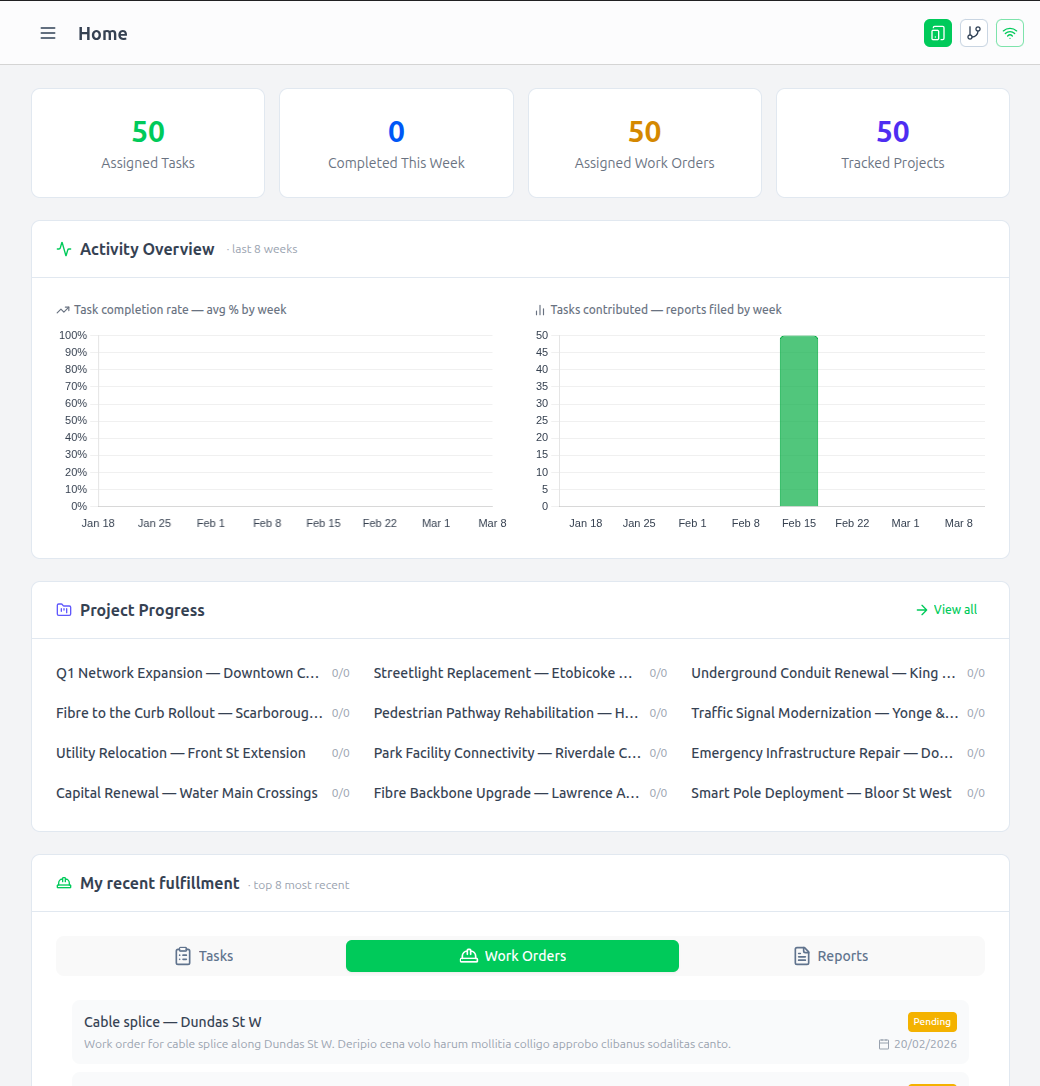 The Dashboard provides live views on fulfillment progress and inventory movements as well as rollups for trends over time.
3. Explore the Interface
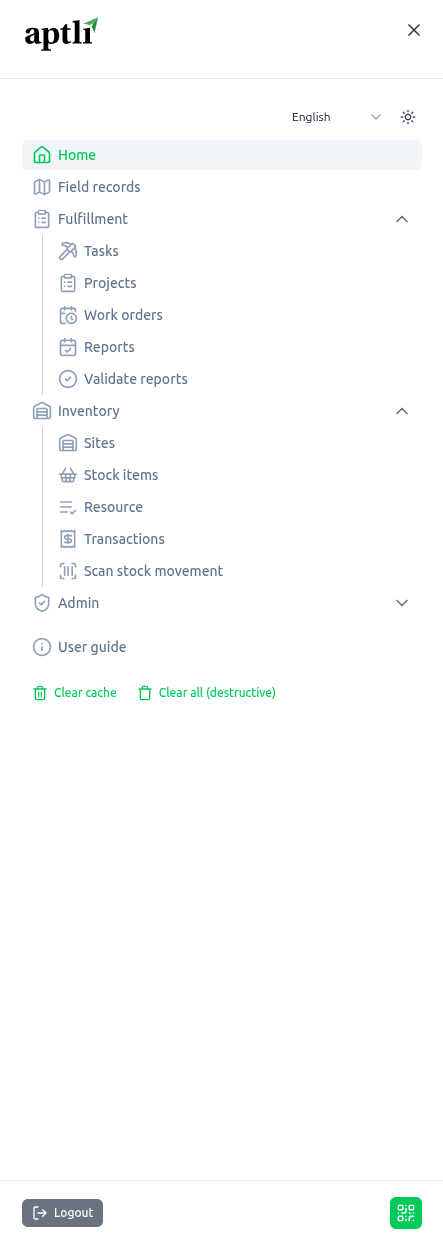
Aptli’s interface is organised around four primary domains. Each domain groups together a set of related pages and workflows:
- Map – view geographic features, tasks, and assignments
- Work Fulfillment – manage tasks, assignments, reports, and validations
- Inventory – track stock items, sites, and transactions
- Administration – manage users, roles, and application settings
4. Explore Your Role What you see depends on your admin rights and role restrictions:
- Field workers see assignments and create reports
- Office coordinators manage inventory and work allocation
- Admins configure users, roles, and system settings
Key Guides by Role
Field Workers:
- Mobile – UI designed for tablets or smartphones to capture task updates in the field
- Work Orders – parts of tasks that have been assigned for execution
- Reports – documented evidence of work completed
Office Coordinators:
- Tasks - Plan work with resource requirements. Assign parts of tasks to Move Inventory and complete work. Monitor progress over time.
- Project Management - Group related work orders into campaigns and track aggregate progress
- Inventory Management - Monitor inventory balances and allow stock to pass from one site to another
Admins:
- Authentication - Manage login methods and security
- Authorization - Control user permissions
- System Settings - Configure application behavior
Interface Tips
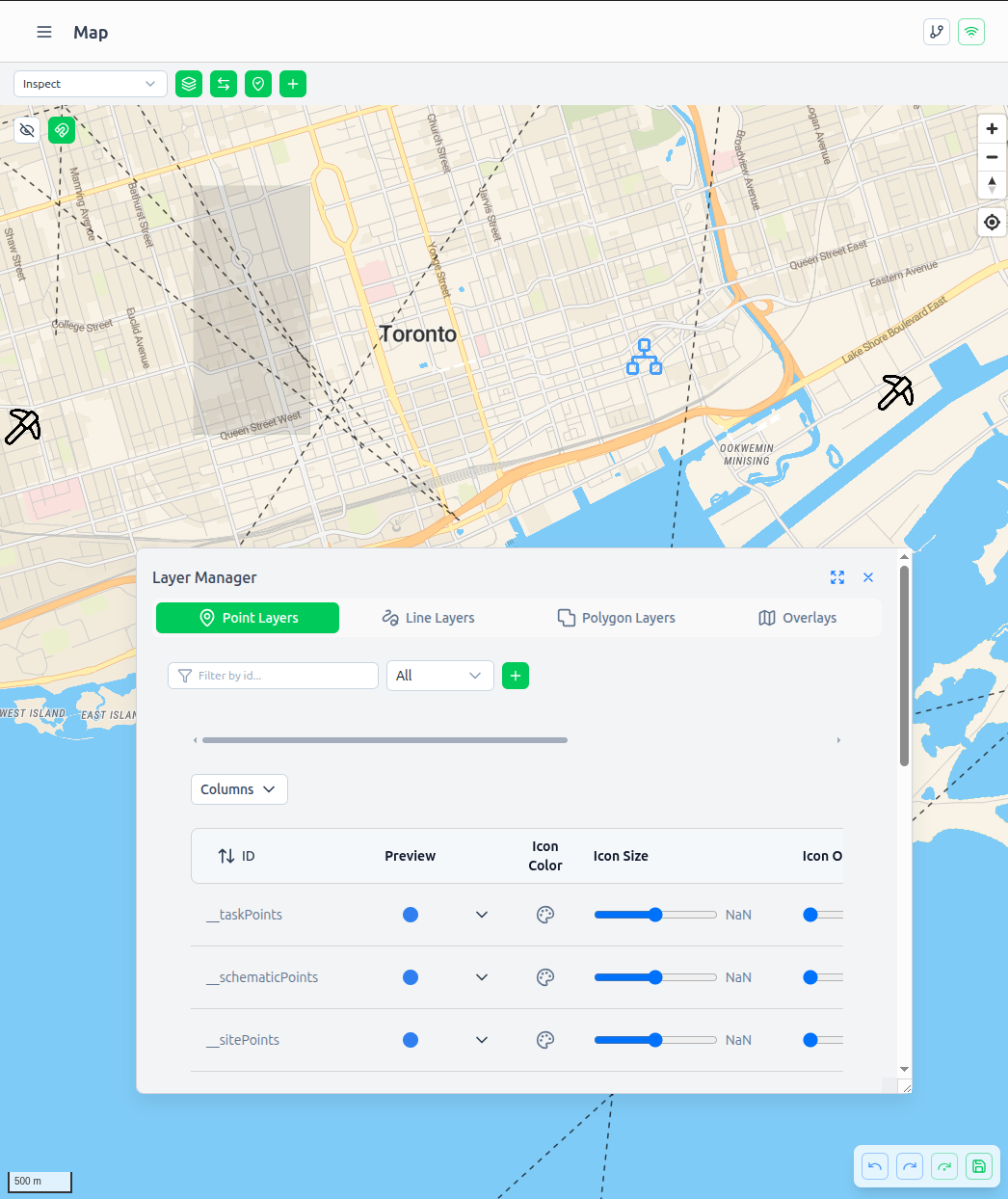 Map interface showing geographic features with filtering and layer controls
Before diving deeper, here are three essential tips for efficient Aptli usage:
Multi-Monitor Setup
Using multiple monitors and tabs is encouraged. For example, keep one tab open on Users and another for Assignments. It's perfectly normal to have two or three monitors active simultaneously.
Benefits:
- Reference data while editing (tasks visible while creating assignments)
- Compare records side-by-side (before/after changes)
- Monitor different datasets simultaneously (map + inventory)
Popout Windows: All floating windows can "pop out" into a different browser window. The popout version is still reactive - this means you can see changes live in your main session even as you update the popout. This enables true multi-monitor workflows with each screen showing live data.
Drag and Drop
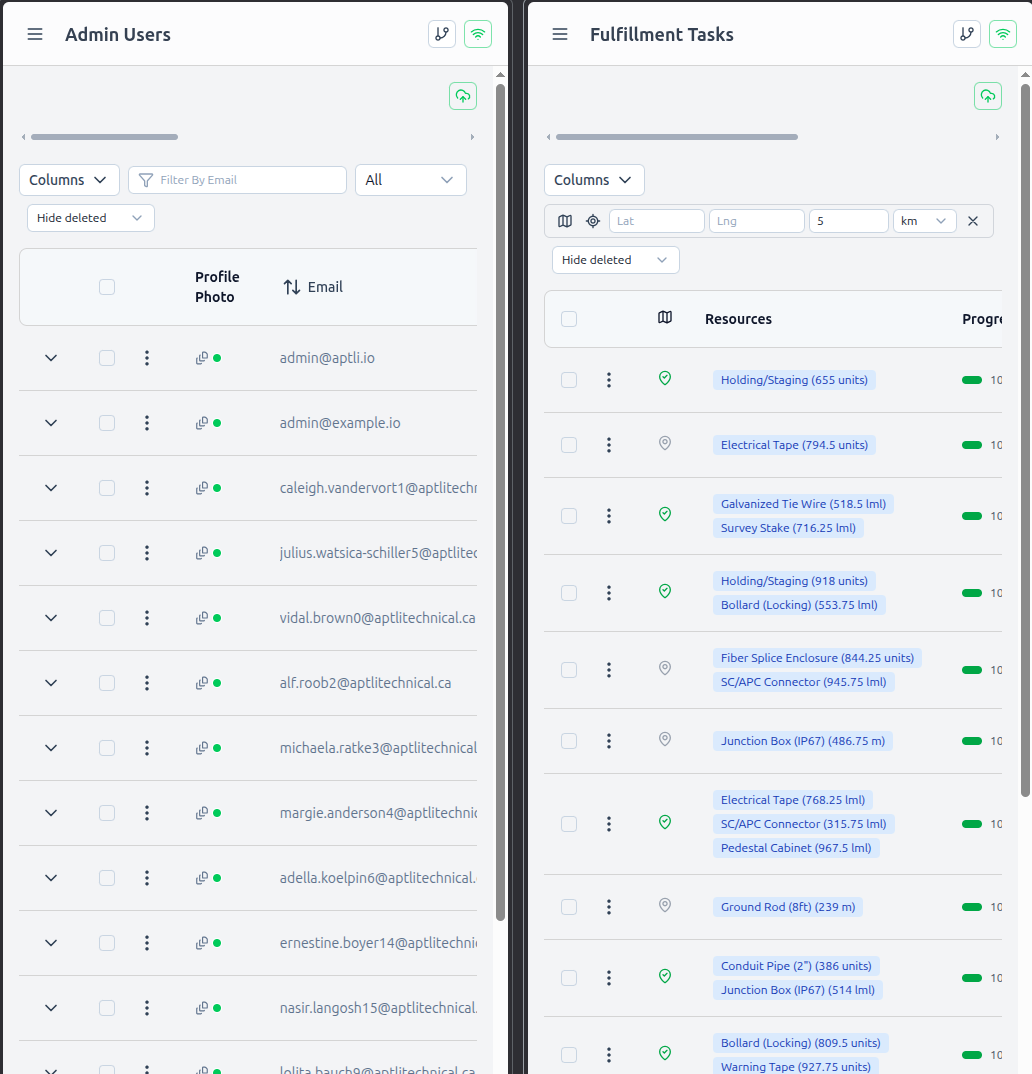 Drag and drop functionality for cross-tab data transfer
Common concepts can be dragged and dropped safely across the application:
Examples:
- Drag users (represented by email) into "Assigned To" fields
- Drag tasks from Tasks page into Assignment "Available Tasks" field
- Drag resources into consumption fields
- Works across browser tabs and popout windows
Cross-Browser Drag: You can even drag between separate browser windows:
- Open Users page in one tab
- Open Assignments page in another tab
- Drag user email from Users table → Assignment's "Assigned To" field
- Drop to assign user
This eliminates copy-pasting IDs and reduces errors.
Filtering and Search
Each data table includes powerful filtering:
- Quick Filters - Pre-built common filters (e.g., "Assigned to me")
- Column Filters - Filter by specific column values
- Date Ranges - Time-based filtering
- Spatial Filters - Proximity to location (for map features and tasks)
Use filters to focus on relevant data and reduce cognitive load.
Next Steps
Choose your path based on your role:
Field Workers: Start with Mobile PWA
Office Coordinators: Begin with Tasks or Project Management
Admins: Review Authentication and Authorization to understand security model
GIS Teams: Explore Field Operations for map features, layers, and schematics
If you can't find an option or you've lost a toolbar, check here and you'll be able to find it again.