

Request Access
Note: Aptli is a closed, secure, system. This means users may request access or sign up with SSO, but will not be able to access the system until an Admin approves their request or account. Both the approving user and the timestamp of this approval are immutable. Default roles and permissions can be assigned to users, but it is strongly suggested to assign a new role when approving a user in the first place.
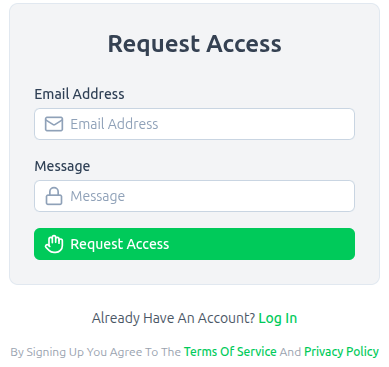
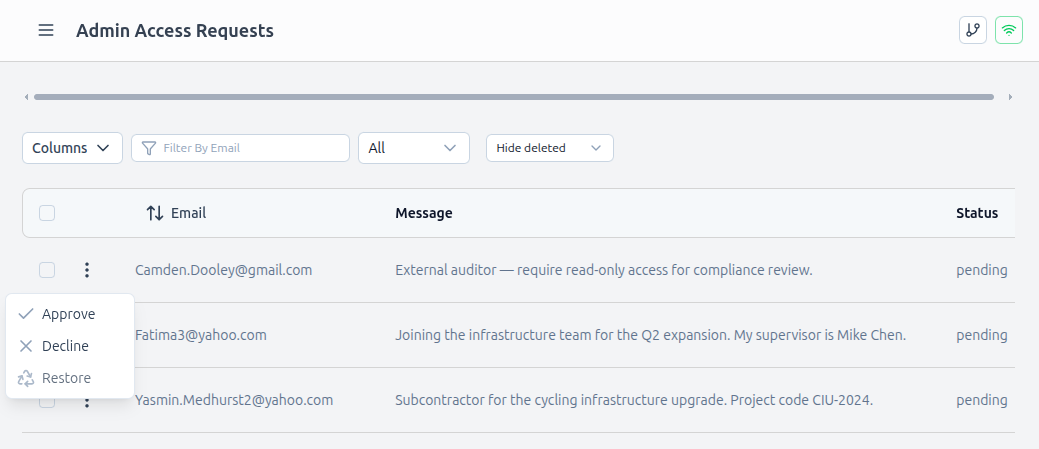
Requests can be viewed by navigating to /admin/access-requests on your own Aptli installation and approved or declined accordingly.
Login
To access Aptli, you'll need either an invite from an existing admin or, if you're setting up for the first time, to configure the initial super-admin account.
To log in, a user needs a few things:
- the admin's timestamp and approval of their account
- the account must not be deactivated
- not to be in
hard-lockstatus - not have 5 failed password attempts
The first 3 options are triggered by an admin. The last one will require the user to trigger a password reset which is also available on the login page.
Logging in is available through the localized login portal (/auth/login).
Logout
Logout is available through the Navigation Menu. To prevent accidental log out, press and hold the button until it finishes loading.

Verify access
If you're getting started with more than one user you'll need to verify everyone has enough rights to complete this guide. To view a list of users you can navigate to the admin > users link or go to /admin/users. Viewing each users details should show enough admin rights to modify work, map features, and schematics. If you're working with a fellow admin, ensure they have access to roles, users, and adminRightsModify which will allow them extend rights to other users.
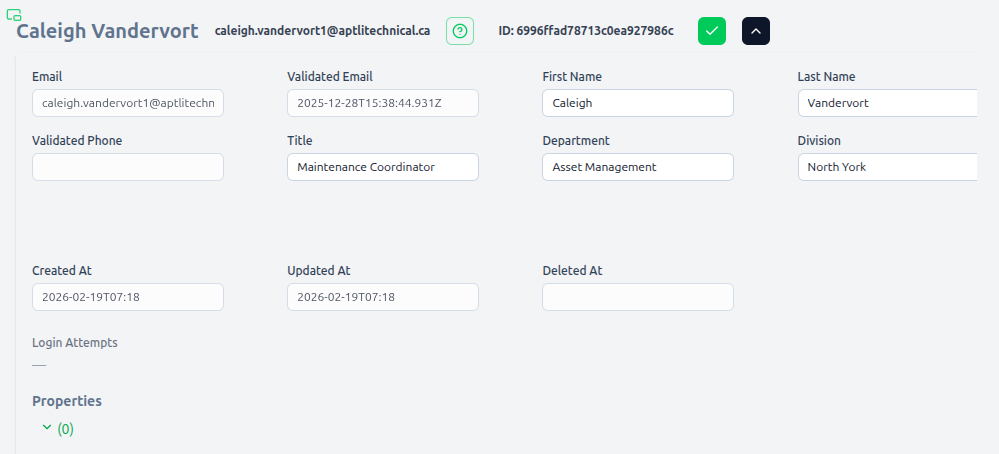
To add another user use the options in the lower right.

This will lead to an Add User Panel which opens on the right.
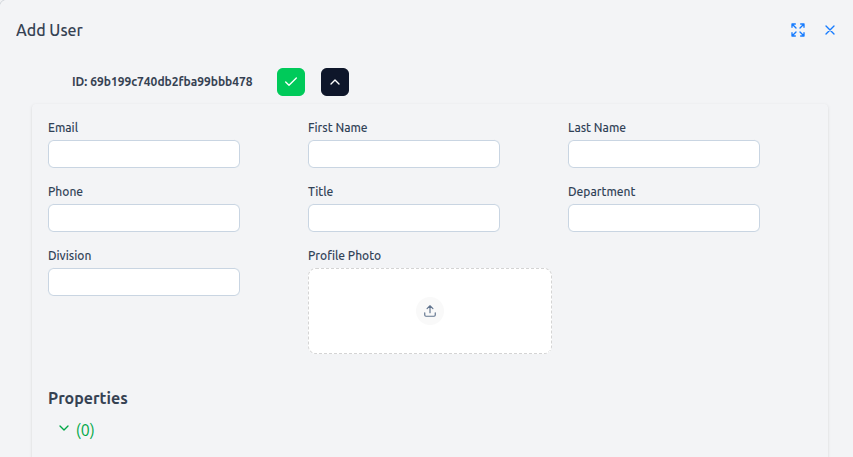
To add many users simultaneously, you can use spreadsheet templates included at the bottom of the form.
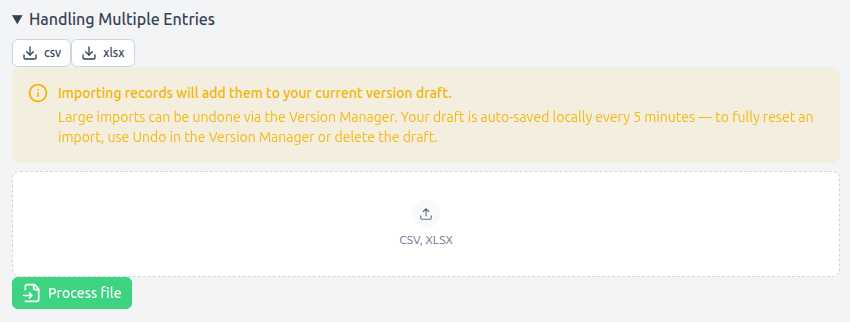
Once complete, users will receive an email to validate their account then reset their passwords afterwards. Invalid accounts can't be used to login even if the login details are correct.
If you're having trouble helping a user login or you're looking to customize the login methods visit the troubleshooting page: Guide to Authorization.