

Authorization
Authorization defines what users can and cannot do after authentication. Aptli combines two independent layers: permissive admin rights (what you can do) and restrictive role restrictions (what you cannot see). Together they give administrators fine-grained control over both capabilities and data visibility.
Authorization Model Overview
Aptli's full security model has three layers:
- Authentication — Who you are (covered in the Authentication section)
- Admin Rights — What you CAN modify (permissive grants)
- Role Restrictions — What you CANNOT see (restrictive filters)
All restrictions are enforced on the server — unauthorized data is never sent to your browser, regardless of what you try through the UI, API, or exports.
This model provides tremendous flexibility while maintaining security.
Admin Rights (Permissive)
Admin rights grant permission to modify information or alter status. Without these rights, users can only view data and edit their own profile.
Common Admin Rights:
usersUpdate- Edit other users' profiles (name, title, division - NOT email/password)usersLogout- Force logout or hard lock usersusersDelete- Delete user accountsusersCreate- Create new users or undelete accountspointsCreate,pointsUpdate,pointsDelete- Modify point featuresworkOrdersCreate,workOrdersUpdate,workOrdersDelete- Manage work ordersassignmentsCreate- Create work assignmentsreportsCreate- Submit work reportstransactionsCreate- Create inventory transactions
Super Rights (Supercede All Others):
appSettingSchemasModify- Modify application-level settings (domains, timeouts, security)adminRightsModify- Grant admin rights to other usersviewDeleted- See deleted records (nearly universal, partially overridden by role restrictions)
Checking User's Admin Rights:
- Navigate to Admin → Users
- Open user profile
- "Admin Rights" section lists all granted permissions
Role Restrictions (Restrictive)
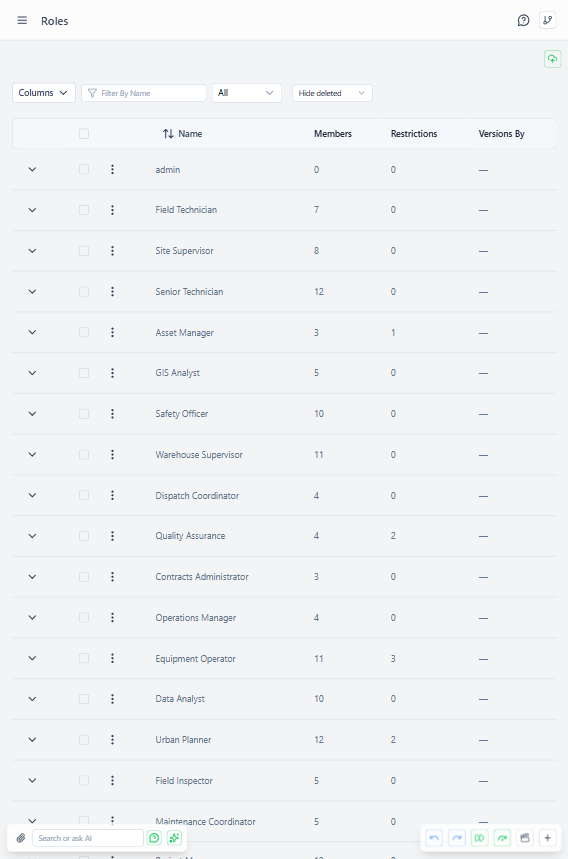 Roles administration page showing configured role restrictions
Roles are collections of restrictions that prevent viewing and altering records with certain characteristics. Membership in a role applies all restrictions to that user.
Role Components:
- Members - Users who have these restrictions applied
- Owner - User who controls membership (or users with
rolesUpdateadmin right) - Role Restrictions - Field-level filters hiding specific data
Role Restriction Structure
 Role detail page showing field-level restriction configuration
Each restriction defines:
- Model - Which data type (points, polygons, assignments, etc.)
- Field - Which property to filter on (owner, status, category, custom fields)
- Comparison - How to match (=, !=, >, <, contains, etc.)
- Filter Value - What value to match against
- Permissions - What's blocked (read, edit, create, delete)
Example Use Case: Contractor Separation
Scenario: Prevent Contractor A from seeing Contractor B's work
Setup:
- Create role: "Contractor A"
- Add role restriction:
- Model: Point (features)
- Field: owner
- Comparison: =
- Filter Value: Contractor B
- Permissions: Read ✓, Edit ✓, Create ✓, Delete ✓ (all true = cannot do any of these)
- Add Contractor A's users as members
Result:
- Contractor A members cannot see any points where owner = "Contractor B"
- Not just hidden in UI - API returns data as if records don't exist
- Cannot accidentally see via screenshot, API call, or export
- Fully server-side enforced
Additional Use Cases
By Work Stage: Prevent field workers from seeing QC validation reports:
Role: "Field Workers"
Restriction:
  Model: Validation
  Field: status
  Comparison: !=
  Filter Value: "" (any value)
  Permissions: Read ✓
Field workers cannot see validations at all.
By Asset Type: Separate infrastructure teams (poles/ducts vs. active equipment):
Role: "Civil Team"
Restriction:
  Model: Point
  Field: category
  Comparison: =
  Filter Value: "Active Equipment"
  Permissions: Read ✓, Edit ✓, Create ✓, Delete ✓
Civil team cannot see or modify active equipment points.
By Physical/Logical: Separate office data access (capacity relationships vs. office locations):
Role: "Capacity Analysts"
Restriction:
  Model: Point
  Field: layer
  Comparison: =
  Filter Value: "Office Locations"
  Permissions: Edit ✓, Create ✓, Delete ✓
Analysts can view offices but not modify locations (read-only).
Combining Admin Rights + Role Restrictions
Default Behavior: All users can see everything but cannot alter anything (without admin rights).
Adding Write Access with Restrictions:
Example: Field workers can edit their own work but not others'
Admin Rights:
  - reportsCreate: true
  - reportsUpdate: true

Role Restrictions:
  Model: Report
  Field: reportedBy
  Comparison: !=
  Filter Value: [current user ID]
  Permissions: Edit ✓
Result:
- Workers can create reports (admin right granted)
- Workers can edit ONLY their own reports (role restriction filters out others)
- Cannot see or modify other workers' reports
Server-Side Enforcement
How It Works:
- All queries filtered before data is returned
- Role restrictions applied on the server (not just UI hiding)
- Users cannot bypass via direct API calls, browser tools, or exports
- Data truly doesn't exist for unauthorized users
Security Implications:
- Screenshot of someone else's screen won't help (data won't load for you)
- Cannot export restricted data (server enforces filters)
- Cannot "guess" record IDs (filtered before ID lookup)
- Records outside your permissions return as not found, even if you know the ID
Managing Roles
Creating Roles:
- Navigate to Admin → Roles
- Click "Create Role"
- Enter role name and description
- Add members (drag users into members field)
- Add role restrictions (can have multiple)
- Save
Editing Roles:
- Only role owner OR users with
rolesUpdateadmin right - Can add/remove members
- Can modify restrictions
- Can delete role (frees members from restrictions)
Role Membership:
- Users can be in multiple roles (restrictions combined)
- Leaving organization: Remove from all roles before deleting account
- Bulk membership: Drag multiple users at once
Customizing Authorization for New Users
App Settings Configuration (Requires appSettingSchemasModify):
- Navigate to App Settings → Authentication
- "Roles for New Users" - Auto-assign roles to new accounts
- "Admin Rights for New Users" - Default permissions granted
- Save
Typical Configurations:
Field Worker Defaults:
Roles: ["Field Workers"]
Admin Rights: {
  reportsCreate: true,
  assignmentsRead: true
}
Office Coordinator Defaults:
Roles: []
Admin Rights: {
  assignmentsCreate: true,
  ordersCreate: true,
  stockItemsView: true
}
No Auto-Grant (Manual Review):
Roles: []
Admin Rights: {} (none)
Admins manually assign after account review.
Viewing Effective Permissions
For Specific User:
- Navigate to user profile
- "Admin Rights" section - What they CAN do
- "Roles" section - What they CANNOT see (via restrictions)
- Combined view shows effective permissions
Testing Permissions:
- Login as user (or impersonate with admin permission)
- Navigate normally
- Restricted data simply doesn't appear
- Actions without admin rights disabled/hidden
Best Practices
Start Restrictive, Grant as Needed:
- New users get minimal permissions
- Add admin rights as roles require
- Easier to grant than revoke (avoids "permission creep")
Use Roles for Data Visibility:
- Separate contractors (prevent competition intelligence)
- Separate work stages (QC from field workers)
- Separate asset types (infrastructure from active equipment)
Use Admin Rights for Capabilities:
- Who can create assignments
- Who can modify inventory
- Who can grant permissions
Document Role Purpose:
- Clear role name ("Contractor A" better than "Role 1")
- Description explains restrictions
- Helps future admins understand intent
Regular Permission Audits:
- Quarterly review user admin rights
- Remove unused rights (user changed roles)
- Check role memberships (users left organization)
Monitor Access Attempts:
- Log failed authorization attempts
- Pattern of denials = user trying unauthorized access
- Investigate and adjust permissions or educate user
Principle of Least Privilege:
- Grant minimum permissions required for job function
- Temporary elevated access for projects (remove after)
- Super rights (
adminRightsModify) only to trusted admins