

Authentication
Authentication verifies who you are before granting access to Aptli. Aptli supports username/password login, OAuth single sign-on (Google, GitHub, Microsoft, Keycloak), and two-factor authentication. This section covers how to use and configure each method, manage account locks, and handle password resets.
Active Login Methods
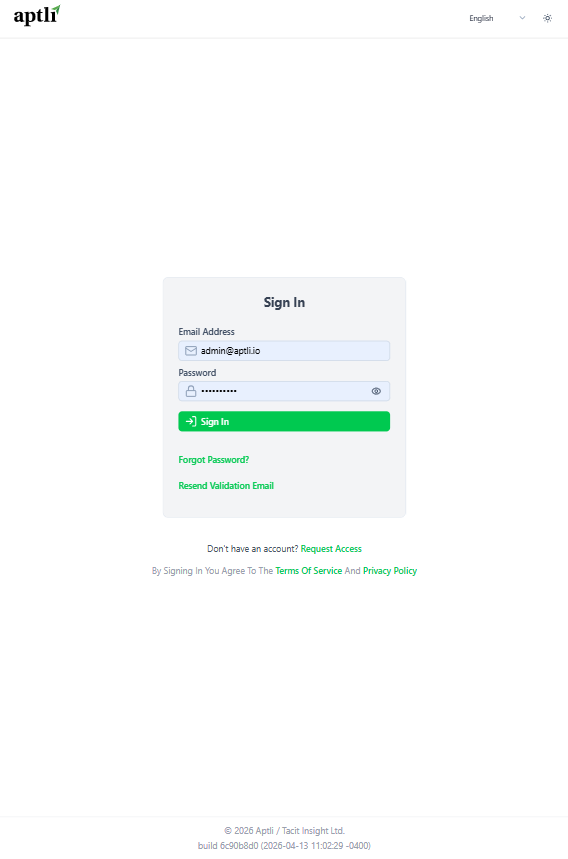 Login page showing available authentication methods including OAuth providers
Configure which authentication methods are available:
Username/Password (Default):
- Email + password combination
- Password requirements: minimum 8 characters, complexity rules
- Automatic logout after inactivity (configurable, default 1 day)
OAuth Providers:
- GitHub OAuth
- Google OAuth
- Additional providers configurable (contact support)
Configuration: Navigate to App Settings → Authentication → Active Login Methods
- At least one method must be enabled
- Multiple methods can be active simultaneously
- Users choose preferred method at login screen
Two-Factor Authentication (2FA)
Enabling 2FA:
- Navigate to user profile
- Click "Enable Two-Factor Authentication"
- Scan QR code with authenticator app (Google Authenticator, Authy, etc.)
- Enter 6-digit code to confirm
- Save recovery codes (in case phone lost)
Login with 2FA:
- Enter email and password (or OAuth)
- System prompts for 6-digit code
- Open authenticator app
- Enter current code (refreshes every 30 seconds)
- Access granted
Recovery Codes:
- 10 one-time-use codes generated at 2FA setup
- Store securely (password manager, printed copy)
- Use if authenticator unavailable
- Each code valid once
Disabling 2FA:
- Navigate to user profile
- Click "Disable Two-Factor Authentication"
- Enter current 6-digit code (or recovery code)
- Confirm disable
Spotting Users Without 2FA
Admin View:
- Navigate to Admin → Users
- Add column: "2FA Enabled" (boolean)
- Filter: "2FA Enabled = false"
- Export list for follow-up
Enforcement: App Settings → Authentication → Require 2FA
- Enable to force all users to set up 2FA
- Grace period configurable (e.g., 30 days)
- After grace period, users cannot login without 2FA
Notification Campaign:
- Bulk email users without 2FA
- Include setup instructions
- Emphasize security benefits
- Set deadline for compliance
OAuth Provider Setup
OAuth providers (Google, GitHub, Microsoft, Keycloak) are configured by your system administrator. See the OAuth Setup Guide for configuration details.
Adding OAuth to User Account
For Existing Username/Password Users:
- Login with email and password
- Navigate to user profile
- Click "Link OAuth Account"
- Choose provider (GitHub or Google)
- Authorize with provider
- OAuth account linked (can now login with either method)
For New Users:
- First login with OAuth creates account automatically
- Email from OAuth provider must be in allowed domains
- Account created with OAuth-only login (no password set)
- Can add password later from profile
Email Validation
New User Flow:
- User signs up (or admin creates account)
- Validation email sent to user's email address
- Email contains 10-minute expiration token
- User clicks link in email
- Account validated (can now login)
Validation Required:
- Cannot login (any method) until email validated
- Includes OAuth users (email must be validated even if provider verified)
Resend Validation Email: Admin can resend from user profile:
- Navigate to Admin → Users
- Open user profile
- Click "Resend Validation Email"
- New 10-minute token sent
Manual Validation:
Admin with usersUpdate can manually validate:
- Navigate to user profile
- Set "Email Validated" date to current date
- Save (user can now login)
Login Security
Max Login Attempts:
- Default: 5 failed attempts
- Configurable in App Settings
- After max attempts: account hard locked
- Unlock requires admin with
usersUpdatepermission
Hard Lock:
- Account cannot login (any method)
- Visible in user profile: "Hard Lock" badge
- Unlock: Admin clicks "Unlock Account" action
- Reset: Failed attempt counter reset to 0
Session Expiry:
- Automatic Logout: Inactivity timeout (default 1 day)
- Reading or writing data resets countdown
- Configurable per app settings
- Server Session Timeout: Server session timeout (default 1 week)
- Forces re-login regardless of activity
- Security measure for long-running sessions
- Session Expiry: Absolute max session duration (default 1 week)
- Multiple devices may have different expirations
- Prevents indefinite sessions
Force Logout
Admin Action:
- Navigate to Admin → Users
- Open user profile
- Actions → Force Logout
- User's session terminated immediately
- User must re-login
Use Cases:
- Security incident (compromised account)
- User left session open on public computer
- Administrative lock (pending investigation)
Troubleshooting Login
User Can't Find Account
Check:
- Navigate to Admin → Users
- Filter by email (case-sensitive)
- If not found: Account may be deleted
- Click "See Deleted" button (requires
viewDeletedpermission) - If found in deleted: Undelete (requires
usersCreatepermission)
Hard Lock
Check:
- Navigate to user profile
- Look for "Hard Lock" badge
- If present: Click "Unlock Account" (requires
usersUpdatepermission) - User can now login
Email Not Validated
Check:
- Navigate to user profile
- "Email Validated" field should have date
- If blank: Resend validation email OR manually set date
- User cannot login via any method without validation
Bad Domain
Check:
- Navigate to App Settings → Authentication
- "Allowed Domains" list
- Verify user's email domain included
- If missing: Add domain OR create account manually (bypasses domain check)
OAuth Not Working
Check:
- Verify environment variables set (CLIENT_ID, CLIENT_SECRET)
- Check callback URL matches provider configuration
- Test: Logout, click "Sign in with Provider"
- Error messages in browser console
- Check provider dashboard for auth attempts
Password Reset
User-Initiated:
- Click "Forgot Password" on login page
- Enter email address
- Reset email sent (10-minute token)
- Click link in email
- Enter new password
- Password reset (can now login)
Admin-Initiated:
Admin with usersUpdate can reset:
- Navigate to user profile
- Actions → Reset Password
- Temporary password generated
- Email sent to user with temp password
- User must change password on first login
Best Practices
Enable 2FA:
- Require for all admin accounts
- Encourage for all users
- Set compliance deadline
Use OAuth When Possible:
- Reduces password fatigue
- Leverages provider security
- Easier account recovery
Monitor Failed Logins:
- Review hard locked accounts weekly
- Pattern of locks = password guessing attack
- Enable 2FA enforcement
Regular Session Expiry:
- Don't set inactivity timeout too long (24 hours reasonable)
- CSRF expiry prevents indefinite sessions
- Balance security vs. user convenience
Allowed Domains:
- Keep list tight (only org domains)
- External contractors = create manually (bypass domain check)
- Review quarterly (remove unused domains)