

Field Operations
Field operations is where you map, manage, and analyse the physical infrastructure your team works on. Draw points, lines, and polygons representing real-world assets — utility poles, cable routes, service areas — organise them into standardised layers, and collaborate with your team using version-controlled offline editing.
Core Concepts
Features - Geographic objects on the map
- Points (poles, equipment, buildings)
- Lines (cables, pipelines, roads)
- Polygons (coverage areas, parcels, buildings)
Layers - Standardized feature collections
- All features in a layer share same schema
- Defines available properties, styling, icons
- Examples: Utility Poles, Fiber Cables, Service Areas
Schematics - Relationship diagrams between features
- Logical connections (not just proximity)
- Capacity models, circuit diagrams, network topology
- Version controlled like features
Imports - Bring external data into Aptli
- GeoJSON (standard)
- ESRI File Geodatabase (server-side conversion)
- CSV with coordinates (auto-converted to GeoJSON)
Mobile PWA - Field worker interface
- Scanner for QR codes
- Quick assignment/report creation
- Map viewing with offline tile caching
- GPS-based feature creation
Versioned Workflows
Version/Commit Flow:

Draft Created → Edit Offline → Commit → Conflict Check → Version Compressed
      ↓              ↓           ↓           ↓                  ↓
Not Visible    Local Only    Visible    Merge or        Historical State
 to Others                   to All     Rollback         Preserved Forever
GIS features use version/commit system:
Why Versioned:
- Collaborative offline editing (subway tunnels, remote sites)
- Spatial conflict detection (overlapping infrastructure)
- Batch operations (redesign entire network segment)
- Rollback capability (undo infrastructure changes)
- Near-permanent fixtures (poles don't move often)
Version Compression:
- Versions never deleted (only compressed)
- Historical states always reconstructible
- Supports compliance (prove what existed when)
- Audit trail for infrastructure changes
Immutability:
- Committed feature changes preserved forever
- Draft/uncommitted changes can be discarded
- Soft deletes for features (configurable retention)
- Deletion records stay in version history
Multi-Monitor Workflows
Field operations benefit from multiple screens:
Typical Setup:
- Screen 1: Map view (features, spatial relationships)
- Screen 2: Feature detail forms (properties, editing)
- Screen 3: Reference data (layer definitions, standards)
Popout Windows:
- Any floating window can pop out to separate browser window
- Reactive: Changes in main session visible in popout
- Enables cross-screen drag-and-drop
Drag-and-Drop:
- Drag features between map windows
- Drag users/resources into feature properties
- Works across browser tabs and popout windows
Version Controls
 Version toolbar with Undo/Redo/Resync/Submit and Data Transfer controls (import/export)
All map editing sessions have version controls prominently displayed at the top-left of the map page:
Primary Controls:
- Undo - Revert the last change in current session
- Redo - Reapply a change that was undone
- Resync - Reload data from server, discard uncommitted changes
- Submit - Push all uncommitted changes to server
Uncommitted Changes Badge:
- Orange badge shows count of unsaved changes
- Appears on SelectedFeatures button
- Updates reactively as you work
Admin Review: non‑admins must request a commit; administrators handle approval on the Admin → Versions page (pending queue).
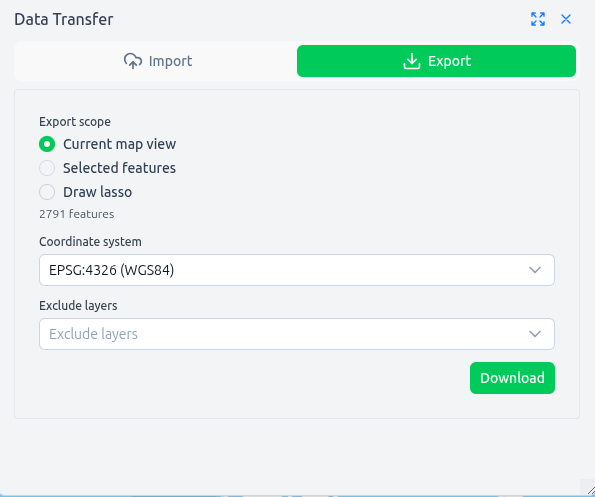
Exporting Data: use the Data‑Transfer button next to the controls to download visible, selected or lassoed features as GeoJSON (desktop only).
Dual Workflows:
Direct Manipulation - Quick edits in place (drag features, edit properties)
Draw Staging - Complex operations (imports, geometry reshaping, batch edits)
- Blue features: Your selections loaded to Draw
- Orange features: Conflicts from other users (read-only)
- Load to Draw button: Move table selections into Draw for advanced editing
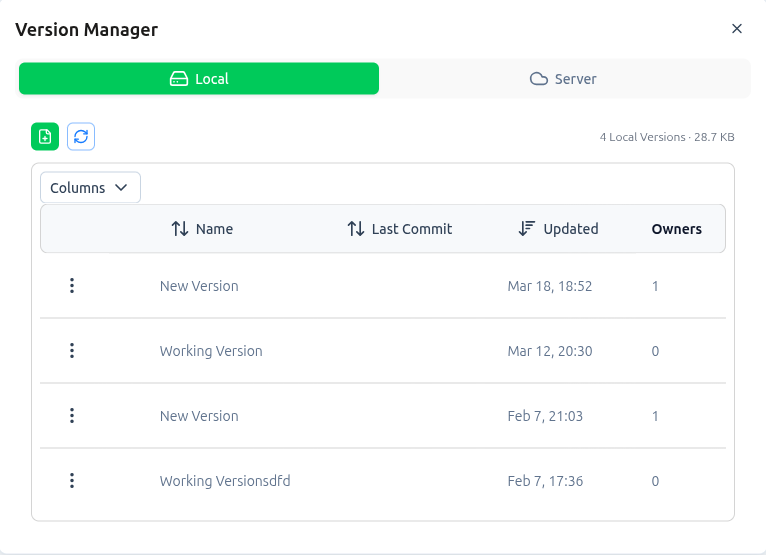
See Version Management for complete guide.
Sections
- Version Management - Submit, undo, conflict resolution, offline editing
- GIS Imports - Import GDB, SHP, GeoPackage, DXF, DGN files
- AI Assistant - AI toolbar, map lasso queries, schematic AI, column mapping
- Schematics - Model relationships and network topology
- Mobile PWA - Field worker mobile interface