

Mobile App
Aptli's mobile interface is designed for field workers on smartphones and tablets. Install it directly from your browser — no app store required — and get offline-first access to your assignments, a QR scanner for inventory pickups, report creation with GPS and photo capture, and map drafting. The mobile experience focuses on execution; administration tasks remain on the desktop.
What is a PWA?
Progressive Web App = installable website that works like a native app:
Installation:
- Open Aptli in mobile browser (Chrome, Safari, Edge)
- Browser shows "Install App" prompt
- Tap "Install" → adds icon to home screen
- Opens in full-screen mode (no browser chrome)
Benefits Over Mobile Browser:
- Faster launch (cached on device)
- Works offline (service worker caching)
- Push notifications
- Home screen shortcuts to specific functions
- Better performance (optimized assets)
Extra Desktop Tools: some features such as bulk imports, deep editing and data export are only available on the desktop app; the mobile PWA provides a “Data‑Transfer” shortcut but export is limited to the desktop version.
No App Store Required:
- No Apple/Google approval process
- Updates deploy instantly (no app store review delay)
- Same codebase as web version (maintenance efficiency)
Mobile Scope
Included - Execution Functions:
- ✅ View assignments (all or just mine)
- ✅ Create reports from assignments
- ✅ Scan QR codes (pickup authorization)
- ✅ View map with features and tasks
- ✅ Create simple map features (point, line, polygon)
- ✅ View reports (all or just mine)
- ✅ Upload photos to reports
- ✅ Edit own user profile
- ✅ Validate phone number (2FA)
- ✅ Request help (help request form)
- ✅ Respond to help requests directed to you
Excluded - Administration Functions:
- ❌ Create assignments (desktop only)
- ❌ Modify inventory (desktop only, except for authorized staff scans)
- ❌ Register new features (simple drafts OK, bulk imports desktop only)
- ❌ Add roles to users (desktop only)
- ❌ Bulk operations (desktop only)
Rationale:
- 5% of desktop app size/complexity
- Focus on field execution
- Complex admin tasks better on desktop
Mobile Interface
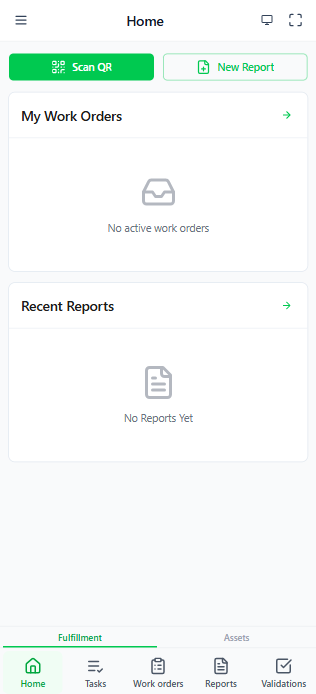
Mobile PWA interface — home screen, assignments, reports, and QR scanner
In-app QR code scanner interface
Bottom Navigation Bar:
- Home (quick overview)
- Assignments (view and filter)
- Reports (create and view)
- Map (features, tasks, drafting)
- Profile (account settings)
Shortcuts (Long-Press Home Icon):
- Scanner (QR code reader)
- Quick Report (create report from current location)
- My Tasks (assignments with my tasks highlighted on map)
Gesture Support:
- Swipe between tabs
- Pull-to-refresh (update data)
- Long-press for context menus
- Pinch-zoom on map
Scanner Function
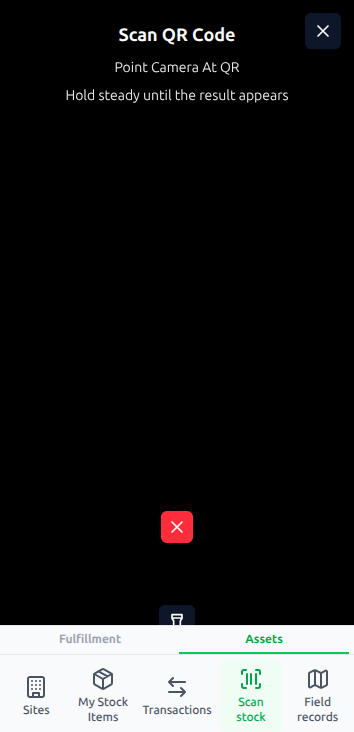
QR code scanner for inventory pickups and feature references:
Use Cases:
- Scan assignment pickup QR → authorize inventory transfer
- Scan feature QR tag → open feature detail
- Scan help request QR → respond to specific issue
Workflow:
- Tap scanner shortcut (or bottom nav scanner icon)
- Camera opens with QR viewfinder
- Point at QR code
- Auto-detect and decode
- Action performed (pickup, navigate to feature, etc.)
Pickup Authorization:
- Scan assignment pickup QR
- Validate:
- You're authorized recipient (or have
canFacilitatePickupspermission) - Stock available at source site
- GPS location (within geofence if configured)
- You're authorized recipient (or have
- Confirm pickup
- Transfer transaction created automatically
- Inventory added to your personal site
Offline QR Scans:
- Scans cached while offline
- Processed when back online
- Prevents duplicate pickups (deduplication logic)
Assignments View
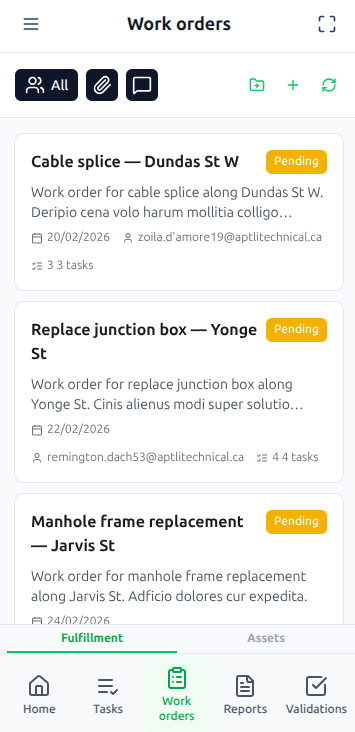
Filter Options:
- All assignments
- Assigned to me
- Created by me
- Status (pending, in-progress, completed)
Assignment Card:
- Name and description
- Assigned users (avatars)
- Status badge
- Resource targets summary
- Progress bar
- Due date indicator
Actions:
- Tap to view details
- Create report (quick action button)
- View QR code (if authorized and pickup code exists)
- Update status (in-progress → completed)
Reports Creation
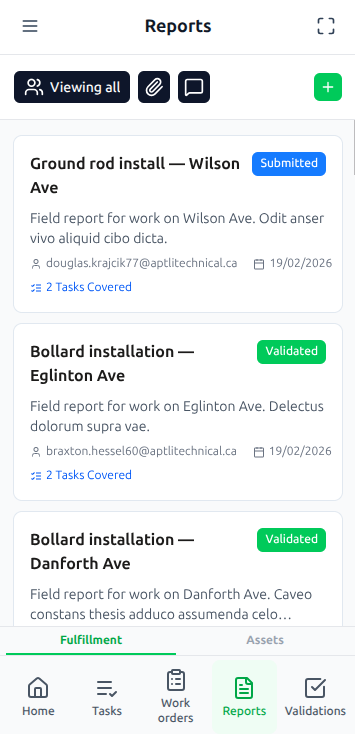
Quick Report Flow:
- From assignment → tap "Create Report"
- Pre-filled: assignment, tasks, suggested consumption
- Adjust actuals (what really happened)
- Tap camera icon → take photos
- GPS auto-captured (current location)
- Submit → consumption transactions created
Mobile-Optimized Fields:
- Large touch targets (buttons, inputs)
- Voice-to-text for descriptions
- Photo upload from camera or gallery
- GPS auto-fill (or manual map selection)
- Minimal required fields (name, work completed, consumed from)
Offline Report Creation:
- Create report while offline
- Photos cached locally
- Auto-submit when connection restored
- Conflict resolution if data changed server-side
Map View
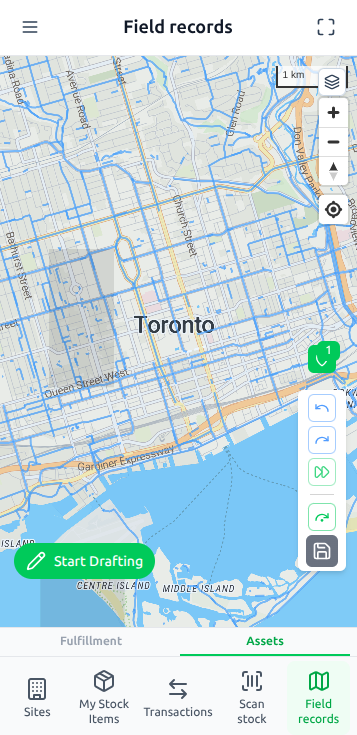
Features Displayed:
- All committed features (from layers)
- Tasks near current location (proximity filter)
- Your assignments highlighted (color-coded)
Map Controls:
- Layer selector (toggle feature visibility)
- Current location button (recenter on GPS)
- Basemap switcher (roads, satellite, terrain)
- Search (find feature by name/ID)
Simple Drafting:
- Tap the + floating action button; the first tap reveals the drawing tools, the second tap activates the selected tool (this two‑level behaviour keeps the UI uncluttered on small screens)
- Choose geometry type (point, line, polygon)
- Tap map to add points
- Fill basic properties
- Save to draft version
- Note: drafts created on mobile participate in the same version/commit system as desktop. Mobile users can request commit, but only admins can approve; finalized versions are visible to everyone once approved.
Offline Map Tiles:
- Map tiles cached (30-day expiration)
- CacheFirst strategy (fast load)
- Works without internet connection
- Syncs features when back online
Stock Transfer (Authorized Staff Only)
Staff with canFacilitatePickups permission:
Workflow:
- Worker arrives at warehouse
- Shows assignment QR code
- Staff scans QR on behalf of worker
- System validates:
- Worker is authorized recipient
- Staff has
canFacilitatePickupspermission - Stock available
- Transfer performed
- Transaction records who performed the scan, on whose behalf, and the scan method (self vs. staff-assisted)
Manual Transfer Creation: Staff can create manual transfers:
- Select source site
- Select recipient
- Select resources and volumes
- Confirm → transaction created
Profile Management
Editable Fields:
- Name, title, division
- Phone number (with validation)
- Notification preferences
- Language selection
Phone Validation:
- Enter phone number
- Tap "Send Code"
- Receive SMS with 6-digit code
- Enter code
- Phone validated (enables SMS notifications)
Two-Factor Authentication:
- Enable 2FA from profile
- Scan TOTP QR with authenticator app
- Enter 6-digit code to confirm
- Required on future logins
Cannot Edit on Mobile:
- Email (security restriction)
- Roles (admin function)
- Admin rights (admin function)
Help Requests
Create Help Request:
- Tap "Request Help" (from profile or menu)
- Fill form:
- Subject line
- Description (voice-to-text supported)
- Category (technical, access, materials, etc.)
- Priority (low, medium, high, urgent)
- Optional: Add photos
- Submit → notification sent to appropriate team
Respond to Help Requests:
- View requests directed to you
- Add comments/notes
- Update status
- Upload response photos
- Close when resolved
Offline Capabilities
Service Worker Caching:
- API responses cached (1-hour expiration)
- Map tiles cached (30-day expiration)
- App shell cached (instant load)
- Images and assets cached
Offline-First Actions:
- Create reports (submit when online)
- Take photos (upload when online)
- Draft map features (sync when online)
- View cached assignments/reports
Sync Indicators:
- Online: Green dot
- Offline: Gray dot + "X items pending sync"
- Syncing: Spinner + "Syncing X items..."
- Last sync time displayed
Installation Instructions
iOS (Safari):
- Open aptli.com in Safari
- Tap Share button (box with arrow)
- Scroll and tap "Add to Home Screen"
- Tap "Add"
- App icon appears on home screen
Android (Chrome):
- Open aptli.com in Chrome
- Tap menu (three dots)
- Tap "Add to Home Screen"
- Tap "Add"
- App icon appears on home screen
Alternatively:
- Browser shows "Install App" banner automatically
- Tap "Install" when prompted
Updates
PWA updates automatically:
- No app store updates needed
- New version downloads in background
- Prompt to refresh when update ready
- Instant deployment of fixes/features
Security Considerations
On-Device Storage:
- Session data is secured on the device
- No sensitive data is stored in plain text
- All local data is cleared on logout
GPS Privacy:
- Location accessed only when needed (reports, QR pickups)
- Permission requested explicitly
- Can decline (manual location entry supported)
- GPS data encrypted in transit (HTTPS)
Photo Privacy:
- Photos stored locally until uploaded
- Deleted after successful upload
- Server storage encrypted
- Access controlled by permissions
Best Practices
Install the PWA:
- Faster than mobile browser
- Works offline
- Better experience
Enable Notifications:
- Receive assignment updates
- Help request responses
- Pickup code expirations
Sync Regularly:
- Open app daily (even if offline)
- Queued actions process automatically
- Prevents large backlog
Use Camera:
- Photos prove work completed
- Document quality issues
- Faster than typing descriptions
Report from Field:
- Submit while still on-site
- Fresh memory = accurate details
- GPS auto-capture (don't forget location)
Cache Map Tiles:
- Open map in service area while online
- Tiles cache for 30 days
- Map usable offline