

Reports
Reports are the field worker's record of completed work. When a worker finishes an installation, repair, or inspection, they submit a report capturing what was done, which materials were used, where the work took place, and any photos or notes. Submitting a report automatically creates inventory consumption transactions and feeds into payment calculations — no separate paperwork required.
Report Structure
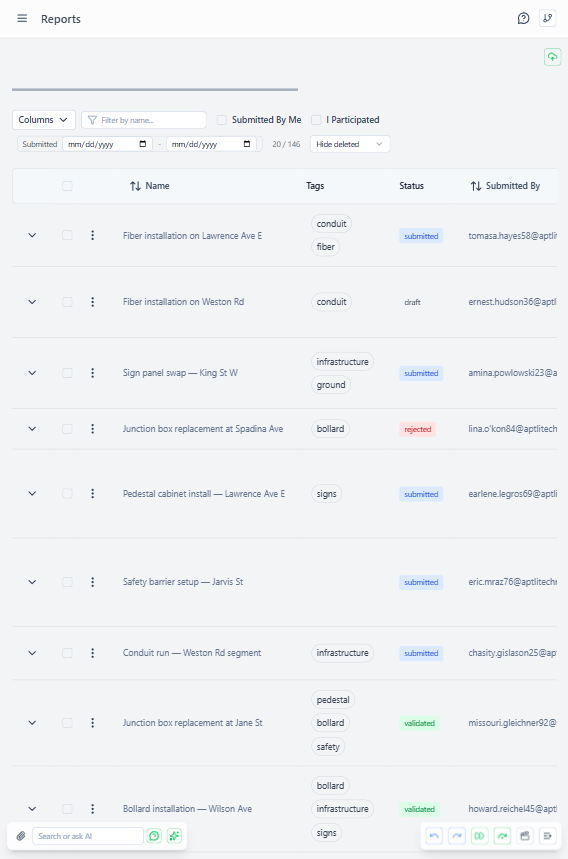 Reports page showing field execution records with consumption and status
Core Fields:
- Name - Report title or summary
- Description - Detailed notes, observations, issues encountered
- Reported By - User who submitted report
- Report Date - When work was performed
- Work order - Optional link to parent assignment
- Geometry - Location where work performed (point, line, or polygon)
Work Documentation:
- Work Completed - Array of resources consumed and tasks finished
- Consumed From - Which stock items were depleted (triggers transactions)
Media:
- Photos - Before/after images, issues encountered
- Attachments - Documents, diagrams, certifications
Work Completed Structure
Each entry in the Work Completed list documents one type of work performed:
| Field | Description |
|---|---|
| Resource | What was done (e.g., Cat6 Cable, Junction Boxes, Electrician) |
| Volume | How much was completed (e.g., 45, 8, 3.5) |
| Unit of Measure | The unit for the volume (e.g., meters, units, hours) |
| Task | Optional — which task this work contributes to |
Example: A worker reports installing 45 m of Cat6 Cable, 8 Junction Boxes, and 3.5 hours of electrician labour, all against the same task.
Ad-Hoc Reports (No Formal Task)
The Task field on each work completed entry is optional — this supports unplanned work:
Use Cases:
- Emergency repairs (broken equipment, accidents)
- Customer service calls (unplanned site visits)
- Maintenance discovered during other work
- Exploratory work (surveys, assessments)
Example:
Report: "Emergency fiber repair - storm damage"
Work Completed: [
  { resource: "Fiber Cable", volume: 20, uom: "meters" }
  // No task linked - this was unplanned emergency work
]
Consumed From: [
  { stockItemId: truck_fiber_id, resource: "Fiber Cable", volume: 20, uom: "meters" }
]
System still creates consumption transactions, tracks material costs, calculates payment - even without formal task assignment.
Consumed From (Automatic Transactions)
The Consumed From list triggers automatic inventory deduction when the report is submitted:
| Field | Description |
|---|---|
| Stock Item | Which stock item to deduct from (e.g., your truck's cable stock) |
| Resource | What resource was consumed |
| Volume | How much was used |
| Unit of Measure | The unit for the volume |
Workflow:
- Worker submits report with Consumed From entries
- System validates stock availability at each stock item
- Consumption transactions created automatically
- Transactions linked to this report
- Stock item balances reduced
- If insufficient stock → report rejected or worker prompted for partial
Example:
Consumed From: [
  { stockItemId: johns_truck_cable, resource: "Cat6 Cable", volume: 45, uom: "meters" },
  { stockItemId: johns_truck_boxes, resource: "Junction Boxes", volume: 8, uom: "units" }
]

Result:
  - 2 consumption transactions created
  - John's truck inventory reduced by 45m cable, 8 boxes
  - Transactions linked to this report
  - Payment calculation has reliable consumption data
Benefits:
- Stock always accurate (can't report work without recording consumption)
- Transaction audit trail automatic
- Prevents "ghost consumption" (report without stock change)
- Payment based on actual materials used
Report Validation
When report submitted, system validates:
Stock Availability:
- Each consumed-from entry is checked
- If a stock item has insufficient volume → options:
- Reject entire report (error message)
- Prompt for partial consumption (reduce reported volume)
- Allow negative balance (with warning - requires adjustment transaction later)
Work-Consumption Match:
- Warning if consumption totals don't align with work completed volumes
- Example: Reported 50 m cable work, but only 30 m consumed from stock
- Doesn't block submission (worker might have used personal materials)
- Flags for validation review
Geometry Validation:
- Points must have valid coordinates
- Lines must have at least 2 points
- Polygons must close (first point = last point)
- Work location must be within reasonable distance of task geometry (configurable)
Creating Reports
Access Required: reportsCreate admin right (or self-reporting permission)
Workflow:
- Navigate to Fulfillment → Reports
- Click "Add Report"
- Fill basic info (name, description, date)
- Link to assignment (optional - needed for progress tracking)
- Add work completed entries:
- Select resource
- Enter volume completed
- Link to task (optional)
- Add consumed from entries:
- Select stock item (usually worker's personal site)
- Select resource
- Enter volume consumed
- Set geometry (where work performed)
- Upload photos/attachments
- Submit → transactions created automatically
Quick Report from Work order: Pre-filled form from assignment detail view:
- Work order, assigned to, available tasks auto-populated
- Suggested consumption based on resource targets
- Worker adjusts actuals and submits
Mobile Report Creation: Simplified mobile interface:
- Camera integration for photos
- GPS auto-capture for geometry
- Voice-to-text for descriptions
- Minimal required fields
Report Progress Contribution
Reports update task and assignment progress:
Task Progress:
- Sum all work completed for this task (from all reports)
- Divide by task resource requirements
- Cap at 100% per resource
Work Order Progress:
- Sum all work completed for this assignment (from all reports)
- Divide by assignment resource targets
- Cap at 100% per resource
- Calculate average across all targets
Over-Delivery: Worker can report more than assigned:
- Contributes to task progress (helps complete task faster)
- Work order progress capped at 100% (worker exceeded targets)
- Validation reviews over-delivery (verify accuracy)
Report Detail View
Information Shown:
- Basic details (name, description, date, reported by)
- Work order link (if applicable)
- Work completed list with task references
- Consumed from list with stock item links
- Consumption transactions (auto-created)
- Photos and attachments
- Geometry on map
- Validation results (if QC performed)
Actions Available:
- Edit report (before validation)
- Upload additional photos
- Add comments/notes
- Request validation
- View consumption transactions
- Print report (PDF export)
Payment Calculation
Reports drive payment workflows:
Labor Payment:
Work Completed:
  - Electrician: 3.5 hours

Payment = 3.5 hours × hourly rate
Material Costs:
Consumed From:
  - Cat6 Cable: 45m × $2/m = $90
  - Junction Boxes: 8 units × $15/unit = $120

Total Material Cost = $210
Total Job Cost:
Labor + Materials = Payment to worker + Material cost = Total
Transaction audit trail provides reliable material costs (can't inflate consumption - tied to actual stock depletion).
Validation Badges on the Reports List
Validations are now surfaced directly on the reports page as traffic-light badges — you no longer navigate to a separate /fulfillment/validations page to view or create them. Each report row has:
- An aggregate validation badge in its own column, showing the most-severe status with a count (e.g.
FAILED · 3). Hover for a per-status breakdown. - A status-grouped badge row inside the expanded report, with one badge per validation.
Clicking any badge opens the ValidationEditModal — a full overlay for viewing, editing, or creating a validation without leaving the report. The Submit button in the modal commits report and validation edits together atomically.
See Validations for the full walkthrough.
Filtering Reports
Pre-Built Filters:
- Reported by me - Your submitted reports
- Needs validation - Reports without any validation (grey badge)
- Recent - Last 7 days
Validation Status Filter: The reports list accepts a validation status filter with these options:
all- every report (default)none- reports without any validationany- reports with at least one validationfailed- reports with at least one failed validationrevision- reports with at least one needs-revision validationpassed- reports where all validations pass
Custom Filters:
- Date range
- Reported by specific user
- Assignment
- Task reference
Best Practices
Accurate Consumption Reporting:
- Report actual materials used (not estimated)
- Use stock items from your personal site (proves you had materials)
- Document over-consumption (explain why more materials needed)
Timely Submission:
- Submit reports same day as work performed
- GPS and timestamps provide accountability
- Fresh memory = more accurate details
Photo Documentation:
- Before photos (site condition)
- During photos (work in progress)
- After photos (completed installation)
- Issues photos (damage, obstacles, non-standard conditions)
Detailed Descriptions:
- Note any deviations from task requirements
- Document reasons for over/under-consumption
- Record issues for future reference (locked gates, missing permits, weather)
Link to Tasks When Possible:
- Helps track task progress
- Enables spatial analysis (where work concentrated)
- Improves future task estimation
Respond to Validation Findings:
- Review validation results promptly
- Provide clarification if questioned
- Correct errors in future reports
- Learn from quality feedback
Report Immutability
Soft Deletes: Reports can be marked deleted but stay in database:
- Preserves transaction history (consumption transactions remain)
- Maintains payment audit trail
- Configurable retention period (app settings)
viewDeletedadmin right to see deleted reports
Edit Restrictions: After validation performed:
- Reports become read-only
- Corrections require new report with notes
- Preserves QC integrity
- Version history tracks all changes before validation
Audit Trail:
- Every report edit logged (who, when, what changed)
- Consumption transactions never edited (immutable)
- Payment calculations traceable to original report data