

Work Orders
Work orders are how planned tasks get turned into field assignments. Each work order tells a worker or team what to accomplish, provides a set of tasks to work from, specifies the materials they should collect, and generates a QR pickup code they scan at the warehouse to receive authorized inventory. Work orders operate in real time — workers see new assignments immediately, and progress updates as reports are submitted.
Work Order Structure
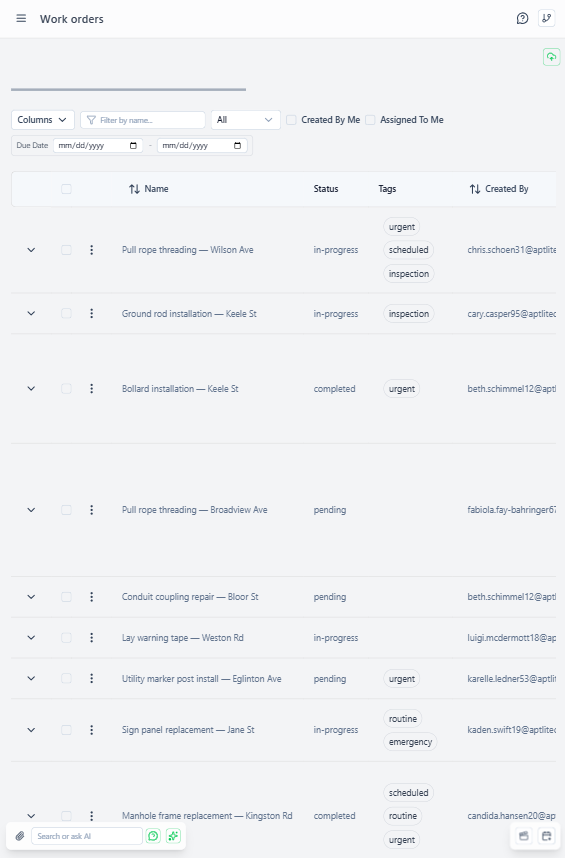
Tip: bulk actions such as delete/restore or “selected add” now live in a floating panel that appears in the lower‑right corner whenever you select one or more rows. This keeps the toolbar clean and works consistently across most list pages.
Core Work Order Fields:
- Name - Descriptive work order name
- Description - Work instructions or context
- Assigned To - Array of users (supports team assignments)
- Status - pending, in-progress, completed, cancelled
- Created By - User who created assignment
- Timeline - Start date, due date, estimated hours
Work Definition:
- Available Tasks - Array of task IDs worker can choose from (10x over-allocation common)
- Resource Targets - Goals to accomplish (not hard reservations)
Inventory Management:
- Planned Stock - Expected inventory demand (soft planning, no locks)
- Pickup Code - authorization code for authorized inventory transfer
- Pickup Code Expires - When authorization expires
- Pickup Remaining - What's left to pick up (after partial pickups)
Real-Time Operation
Work orders bypass version/commit workflow:
Why Real-Time:
- Workers need immediate answer: "Do I have this work?"
- Payment calculation requires committed assignment data
- No value in offline drafting (assignments are execution, not planning)
- Stock visibility must be current for QR pickup validation
Resource Targets (Not Reservations)
Resource Targets define work goals, NOT inventory locks:
Example:
Work order to John:
  Resource Targets: [
    { resource: "Cat6 Cable", volume: 50, uom: "meters" },
    { resource: "Junction Boxes", volume: 10, uom: "units" }
  ]
Key Points:
- Does NOT reserve 50m cable from inventory
- Other workers can still pick up same materials
- Inventory allocated at QR scan time (first-come, first-served)
- Allows flexibility when priorities change mid-day
Why Not Hard Reservations:
- Priorities shift rapidly in field operations
- Worker might call in sick (reserved stock becomes unavailable)
- Multiple workers might share same inventory pool
- Warehouse can't predict exact pickup timing
Planned Stock (Optional): Forecast demand without locks:
Planned Stock: [
  { stockItemId: warehouse_cable_id, resource: "Cat6 Cable", volume: 50, uom: "meters" }
]
Helps warehouse staff:
- See total expected demand across assignments
- Prepares materials for pickup (set aside without locking)
- If stock insufficient, warns before worker arrives
Available Tasks (10x Flexibility)
availableTasks array provides worker choice:
Example:
Work order:   Resource Targets: 50m cable
  Available Tasks: [Task1, Task2, Task3, ... Task30]

Each task requires 2-10m cable
Worker chooses which tasks to complete to meet 50m target
Benefits of Over-Allocation:
- Worker picks optimal route (nearest tasks first)
- Work around obstacles (locked building, weather delay)
- Adapt to inventory availability (some tasks need materials not in stock)
- Increased autonomy (worker judgment valued)
Typical Ratio:
- 10x over-allocation common (10 units of work, 100 units of options)
- Ensures worker never runs out of tasks
- Incomplete tasks roll to next assignment
QR Pickup Codes
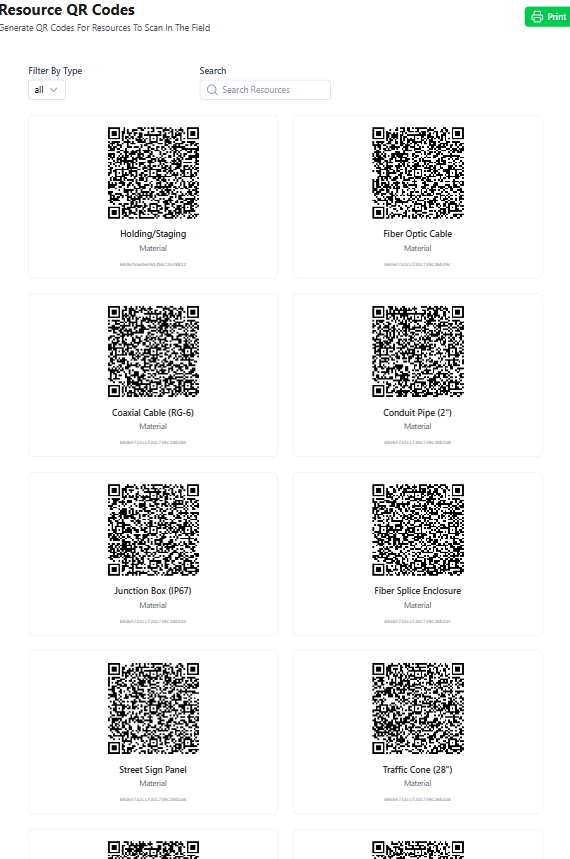
Note: the QR code is now displayed at the top of the detail pane (above the resource targets) so it’s immediately visible when you open the assignment. It used to render at the bottom of the page in earlier versions.
Work orders can generate authorization code-based QR codes for inventory authorization:
Generation:
- Create assignment with resource targets
- System generates a QR authorization code containing:
- Authorized user IDs
- Resource targets (what can be picked up)
- Expiration timestamp
QR Display:
- Only shown to authorized recipients (users assigned to the work order)
- Non-authorized users do not see the QR code
- 200×200 px QR image in assignment detail view
- Shows expiration date if a pickup expiry is set
Scanning Workflow:
QR Pickup Flow:

Work order Created → QR Generated (authorization code) → Worker Scans → Validation → Transfer Transaction
       ↓                    ↓                   ↓              ↓              ↓
  Resource Targets    Pickup Code        Camera/Scanner   Auth Check   Stock Updated
                      Expiration                         Availability  GPS Recorded
                                                        Signature
- Worker opens scanner (mobile app or camera)
- Scans assignment QR code
- System validates:
- authorization code signature and expiration
- Scanner is authorized recipient OR has
canFacilitatePickupspermission - Stock availability at source site
- Creates transfer transaction automatically
- Worker's personal site receives inventory
Partial Pickups:
Work order requests: 100 units
Only 60 available → worker takes 60
pickupRemaining updated: 40 units
Same QR reusable when restocked (authorization code still valid)
Staff-Assisted Pickups:
Warehouse staff with canFacilitatePickups permission:
- Can scan QR on behalf of an authorized worker
- Transaction records who performed the scan and on whose behalf
- Enables an unattended warehouse model (worker arrives, staff facilitates transfer)
Other UI Features
AI Assistant
Many list and detail views now include a floating AI helper in the lower left/right corner (look for the chat icon). Click it to open a slideover where you can ask questions about the current page, search for records, or generate task descriptions. The assistant is an optional productivity aid and can be dismissed by clicking the ‘X’. It’s available throughout the fulfilment workflow.
Work Order Status
Work order lifecycle:

pending → in-progress → completed
   ↓           ↓            ↓
Created    First Report   All Targets Met
   ↓        Submitted     or Manual Update
   └──────→ cancelled (work redirected/postponed)
pending - Created, not started
- Initial state for new assignments
- Worker hasn't begun work yet
in-progress - Work underway
- At least one report submitted
- Or worker manually updated status
completed - All work finished
- All resource targets met (or exceeded)
- Worker marked as complete
cancelled - Work order no longer needed
- Work redirected to someone else
- Timeline changed, work postponed
- Still visible in history (soft delete option)
Progress Calculation
Work order progress based on resource targets, not available tasks:
Formula:
For each resource target:
  Sum all completed work from reports
  Divide by target volume
  Cap at 100% per resource

Overall = Average across all resource targets
Example:
Resource Targets:
  - 50m cable
  - 10 junction boxes

Reports submitted:
  - Report A: 30m cable, 6 junction boxes
  - Report B: 25m cable, 5 junction boxes

Progress:
  Cable: (30 + 25) / 50 = 110% → capped at 100%
  Boxes: (6 + 5) / 10 = 110% → capped at 100%
  Overall: (100% + 100%) / 2 = 100%
Visual Indicators:
- Progress bar: Green ≥100%, Yellow ≥50%, Red <50%
- Used in: Reports and validations referencing this assignment
Creating Work Orders
Access Required: assignmentsCreate admin right
Workflow:
- Navigate to Fulfillment → Work Orders
- Click "Add Work Order"
- Fill basic info (name, description)
- Drag users into "Assigned To" field (supports drag-and-drop)
- Set timeline (start date, due date)
- Add resource targets (what worker should accomplish)
- Drag tasks into "Available Tasks" field (from Tasks page)
- Optionally set planned stock (forecast demand)
- Generate pickup code if protected inventory needed
- Save (immediately visible to assigned workers)
Drag-and-Drop Support:
- Drag users from Users page → Assigned To field
- Drag tasks from Tasks page → Available Tasks field
- Works across browser tabs (multi-monitor setup)
Filtering Work Orders
Pre-Built Filters:
- Created by me - Work orders you created
- Assigned to me - Your work assignments
Custom Filters:
- Status (pending, in-progress, completed, cancelled)
- Date range (start date, due date)
- Assigned to specific user
- Contains specific task
Work Order Detail View
Information Shown:
- Basic details (name, description, status)
- Assigned users (draggable objects)
- Resource targets list
- Available tasks list
- Progress bar and percentage
- QR code (if authorized and pickupCode exists)
- Pickup remaining (after partial pickups)
- Reports submitted for this assignment
- Transaction history (pickups performed)
Actions Available:
- Update status
- Edit timeline
- Add/remove tasks
- Regenerate pickup code (if expired)
- Create new report (quick action from assignment)
- Export PDF — download a printable PDF summary of the work order
Creating Reports from Work Orders
Quick workflow to report work:
- Open assignment detail view
- Click "Create Report" button (in actions slot)
- Pre-filled report form appears:
- Assigned to: Same as assignment
- Available tasks: Auto-populated from assignment
- Suggested consumption: Based on resource targets
- Worker adjusts actuals (what really happened)
- Submit report
- Consumption transactions created automatically
- Work order progress updated
Notifications
Batch notifications prevent spam:
Smart Batching:
- 10+ assignment changes in 1 hour → single summary notification
- Individual notification for urgent/high-priority assignments
Digest Schedule:
- Hourly digest (user configurable)
- End-of-day summary
- Real-time in-app badge count
Notification Content:
- New assignments created for you
- Status changes on your assignments
- Approaching due dates
- Pickup codes expiring soon
Best Practices
Over-Allocate Tasks:
- Provide 10x more tasks than required to meet targets
- Worker autonomy improves efficiency
- Reduces "ran out of work" downtime
Set Realistic Timelines:
- Consider travel time between tasks
- Account for material pickup delays
- Pad for weather, traffic, locked sites
Use Pickup Codes for Protected Inventory:
- High-value equipment
- Controlled materials requiring accountability
- Items with regulatory tracking requirements
Monitor Partial Pickups:
- Check
pickupRemainingregularly - Restock so workers can complete pickups
- Communicate delays to assigned workers
Review Completed Work Orders:
- Compare resource targets to actual consumption (from reports)
- Identify estimation errors (too much/little allocated)
- Improve future assignment planning