

Stock Items
A stock item represents the current balance of a specific resource at a specific site — for example, 500 m of Cat6 Cable at the Central Warehouse, or 10 mounting brackets in a worker's personal inventory. You never edit balances directly: every change comes from a transaction (receipt, transfer, consumption, or adjustment), ensuring a complete audit trail. A single resource can have multiple stock items spread across many sites simultaneously.
Stock Item Structure
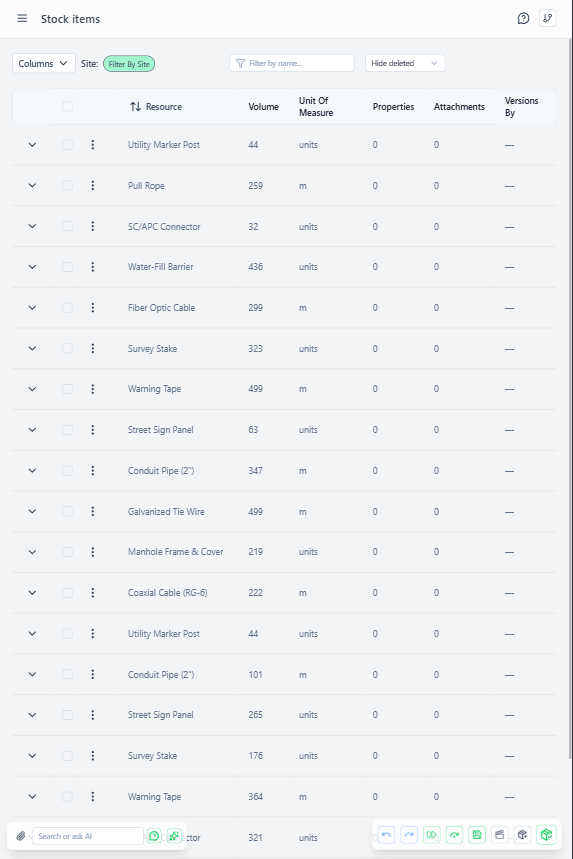 Stock items page showing current inventory balances across different sites
Core Fields:
- Resource - Reference to resource definition (e.g., "Cat6 Cable")
- Site - Storage location (warehouse, vehicle, person)
- Volume - Current quantity/amount
- UOM - Unit of measure (must match resource's supported UOMs)
Metadata:
- Batch/Lot Number - Optional tracking for receipt batches
- Expiration Date - For materials with shelf life
- Properties - Flexible JSON for custom tracking (damage notes, supplier info, etc.)
How Stock Items Work
Automatic Balance Updates
Stock item volumes update automatically through transactions:
- Receipt - Increases volume (new inventory arrives)
- Transfer - Reduces source volume, increases destination volume
- Consumption - Reduces volume (field work depletes stock)
- Adjustment - Manual correction (sets new volume, records reason)
You never manually edit volumes - create transactions instead.
One Resource, Multiple Stock Items
A single resource can have many stock items across different sites:
Resource: "Cat6 Cable" (meters)
  Stock Item A: 500m at Central Warehouse
  Stock Item B: 50m at Field Site 12
  Stock Item C: 10m in John's vehicle (personal site)
  Stock Item D: 25m in Jane's vehicle (personal site)
This enables:
- Site-specific inventory visibility
- Peer-to-peer transfers between workers
- Per-location minimum stock alerts
Creating Stock Items
Manual Creation:
- Navigate to Inventory → Stock Items
- Click "Add Stock Item"
- Select resource and site
- Initial volume set via
receipttransaction (not direct entry)
Automatic Creation via Receipt:
- Create transaction type
receiptat destination site - If no stock item exists for that resource + site combination:
- Stock item created automatically
- Volume set to receipt amount
- If stock item already exists:
- Volume increased by receipt amount
Automatic Creation via Transfer: When QR pickup scanned:
- Stock reduced at source (existing stock item)
- New stock item created at recipient's personal site (if doesn't exist)
- Or recipient's existing stock item increased
Stock Visibility
Real-Time Balance:
- Stock levels update instantly with transactions
- No caching or delayed updates
- Critical for QR pickup validation (must know current availability)
Filtering by Site:
- View all stock at central warehouse
- View worker's personal inventory
- View vehicle inventory
- Cross-site search for resource availability
Low Stock Alerts:
- Set minimum stock level on resource definition
- Alert triggers when any stock item falls below threshold
- Helps manage replenishment
Stock Item Lifecycle
Typical Lifecycle:
- Receipt - Inventory arrives at warehouse (receipt transaction)
- Set Aside - Planned for assignment (no transaction yet, just planning)
- Pickup - Worker scans QR code (transfer transaction to personal site)
- Consumption - Worker completes task, submits report (consumption transaction)
- Return - Unused materials returned (transfer transaction back to warehouse)
Zero Balance: Stock items with volume = 0 still exist in database:
- Preserves transaction history
- Shows which sites previously held resource
- Can be replenished with new receipt
Protected Stock Items
If the resource is marked Requires Protection:
- Cannot directly transfer stock item
- Must create assignment with pickup QR code
- Scanning QR validates authorization
- Transaction records scanner identity and GPS location
Partial Pickups Supported:
- Assignment requests 10 units
- Only 5 available → worker takes 5
- Assignment
pickupRemainingupdated - Same QR can be scanned again when restocked
Stock Item Transactions
View all transactions affecting a stock item:
- Navigate to stock item detail view
- "Transaction History" tab shows:
- All receipts, transfers, consumptions, adjustments
- Who performed action
- When and where (GPS for transfers)
- Volume changes (from → to)
This provides complete audit trail for compliance and reconciliation.
Best Practices
Organize by Site Type:
- Central warehouse = primary replenishment point
- Field staging sites = temporary storage near active work areas
- Personal sites (workers/vehicles) = mobile inventory for immediate use
Regular Cycle Counts:
- Create adjustment transactions to correct discrepancies
- Include reason field (e.g., "Physical count 2026-02-10")
- Compare transaction history to identify loss patterns
Minimize Manual Adjustments:
- Use receipts/transfers/consumptions when possible
- Adjustments should be exception, not routine
- Frequent adjustments indicate process issues (theft, reporting errors)
Plan, Don't Reserve:
- Assignments show
plannedStock(demand forecast) - NOT hard reservations (other workers can still pick up)
- Allows flexibility when priorities change
- Actual allocation happens at QR scan time