

Transactions
Transactions are the permanent record of every inventory movement in Aptli. Whether a shipment arrives at the warehouse, a worker scans a QR pickup code, materials are consumed on a job, or an adjustment corrects a count discrepancy — each event creates an immutable transaction entry. This audit trail cannot be edited or deleted, and corrections are always made by creating a new adjustment transaction that references the original.
Transaction Types
Transaction Flow:

Receipt          Transfer              Consumption        Adjustment
   ↓                ↓                      ↓                 ↓
New Stock  →  Site A → Site B  →  Work Depletes Stock  Manual Correction
(Purchase)    (QR Pickup)         (Report Submitted)   (Cycle Count)
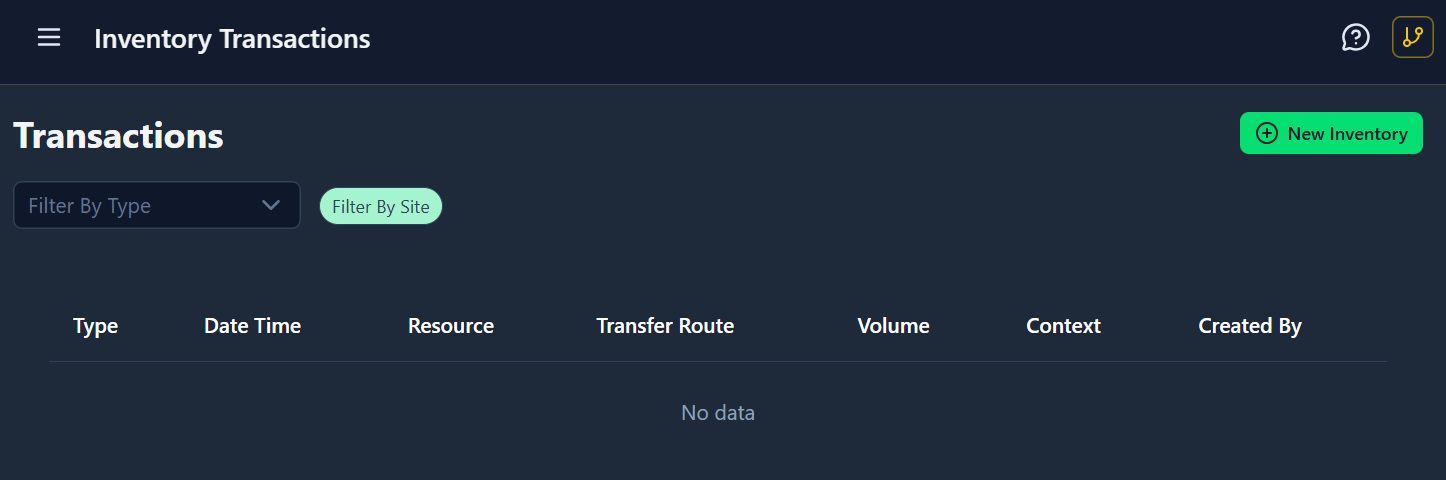 Transactions page showing audit trail of all inventory movements
Receipt
New inventory arrives at a site (purchases, returns from field).
Each receipt records the destination site, the resource received, and the new stock balance after the receipt. For example: 100 m of cable arrives at the warehouse, bringing the balance from 500 m to 600 m.
Transfer
Inventory moves between sites (warehouse → worker, worker → field site).
Each transfer records the source site, destination site, resource moved, and the resulting balances at each site. QR-based transfers also record the authorization code that was scanned, who scanned it, whether it was self-scanned or staff-assisted, and the GPS location of the scan. For example: a worker picks up 10 m of cable via QR scan, reducing the warehouse balance and adding to the worker's personal inventory.
Consumption
Field work depletes inventory (automatic creation when report submitted).
Each consumption records where the materials came from, the resource consumed, the remaining balance after consumption, and a link to the work report that triggered it. For example: a worker uses 8 m of cable completing a task, leaving 2 m in their inventory.
Adjustment
Manual correction of stock levels (cycle counts, damage, loss).
Each adjustment records the stock item, the resource, the previous balance, the new balance, and a required reason. For example: a cycle count finds only 0 m of cable remaining, down from the recorded 2 m, with a note that the roll end was discarded.
Transaction Fields
Every transaction records what type it is (receipt, transfer, consumption, or adjustment), the resource involved, the unit of measure, the timestamp, and the user who created it. Each type also records the relevant movement details — source and destination sites, balance changes, linked reports, scan details for QR-based transfers, and correction reasons for adjustments.
Transaction Immutability
Cannot Be Edited:
- Transactions are write-only
- No update or delete operations
- Preserves audit trail integrity
Making Corrections:
- Don't try to edit wrong transaction
- Create new
adjustmenttransaction - Include detailed reason explaining correction
- Both transactions stay in history
Example Correction Flow:
Day 1: Receipt shows 100 units arrived
  → Creates transaction: toVolume = 100

Day 2: Discover only 95 units actually received
  → Create adjustment: fromVolume = 100, toVolume = 95
  → Reason: "Receipt count error - only 95 units in shipment"

Result: Both transactions visible in audit trail
Automatic Transaction Creation
From Report Submission
When a worker submits a report that includes consumed-from entries:
- System validates stock availability at each stock item
- Atomically creates consumption transactions for each resource
- Links each transaction to the report that triggered it
- Depletes stock item volumes
- If insufficient stock → reject report OR prompt for partial consumption
Benefits:
- Stock always accurate (can't forget to record consumption)
- Report + transaction committed together (atomic)
- Payment calculation has reliable data
From QR Pickup Scan
When a worker scans an assignment pickup QR, the system automatically verifies the authorization code and creates the transfer record.
Benefits:
- No manual transaction entry
- GPS proves physical presence
- Audit trail shows who authorized transfer
Manual Transaction Entry with QR Code Scanning
For shipments arriving at sites where the items don't have existing QR codes, field staff can use the Manual Transaction Form with integrated QR scanning to quickly accept inventory using a physical reference book of resource QR codes.
Creating a Physical Resource Reference Book
Admin Setup (One-Time):
- Navigate to Admin → Resource QR Codes (
/admin/resource-qr-codes) - Filter by resource type if needed (Material, Labor, Equipment)
- Search for specific resources to include
- Click Print to generate printable QR code sheet
- Print on standard letter/A4 paper
- Laminate pages and bind into reference book
- Place book at receiving dock or warehouse station
Each QR code encodes a reference to the resource — scanning it auto-fills the resource name, type, and default unit of measure into the transaction form.
Mobile Workflow for Receiving Shipments
Field Staff Process:
- Open Manual Transaction Form
- Navigate to Inventory → Transactions
- Click "Add Manual Transaction" button
- Requires
canFacilitatePickupspermission
- Enable Batch Mode (Optional but Recommended)
- Toggle "Batch Mode" switch at top of form
- Allows scanning and entering multiple items before final submission
- Saves time when shipment contains 5+ different items
- Scan Resource QR Code
- Click scan button (📷 icon) next to Resource Name field
- Camera opens on mobile device
- Point camera at QR code from reference book
- QR data auto-fills: Resource Name, Resource ID, Default UOM
- Enter Quantity Details
- Volume field: Enter quantity received (e.g., "50")
- UOM field: Pre-filled from QR, adjust if needed (e.g., "m" for meters)
- Site: Drag-and-drop destination site or use current location
- Add to Batch (If Batch Mode Enabled)
- Click "Add to Batch" button
- Item appears in batch list below
- Form clears for next item
- Repeat steps 3-5 for each item in shipment
- Submit Transaction(s)
- Single mode: Click "Submit" (creates one transaction)
- Batch mode: Click "Submit Batch (N items)" (creates N transactions atomically)
- Success notification shows how many items were accepted
- If any items fail, system reports count but doesn't rollback others
Example Batch Workflow:
Shipment arrives with 5 different materials:
1. Scan "Cat6 Cable" QR → Enter 50m → Add to Batch
2. Scan "Conduit 1in" QR → Enter 20 units → Add to Batch
3. Scan "Junction Box" QR → Enter 15 units → Add to Batch
4. Scan "Cable Tie" QR → Enter 500 units → Add to Batch
5. Scan "Grounding Wire" QR → Enter 100m → Add to Batch
6. Submit Batch (5 items)
→ Creates 5 stock items + 5 receipt transactions instantly
Handling Unknown Resources
If shipment contains items not in reference book:
- Type Resource Name Manually
- Enter name in Resource Name field (no QR scan)
- System searches for existing resource by name
- If not found → automatically places in "Holding/Staging" resource
- Holding/Staging Workflow
- Warning toast: "Resource not found. Placed in Holding/Staging"
- Stock item created under the Holding/Staging resource category
- Your original entry is preserved in the transaction notes
- Later: Office staff allocates to the proper resource (see Allocating Staged Inventory below)
- Benefits of Auto-Staging
- Field staff doesn't need to wait for office approval
- Inventory physically accepted and tracked immediately
- Resource categorization happens asynchronously
- No blocking delays for urgent shipments
Batch Mode Features
Line Items Table:
- Shows all scanned items before submission
- Displays: Resource Name, Volume, UOM
- Remove individual items with X button
- Clear visual of what will be committed
Submission:
- Atomic batch processing (all-or-nothing where possible)
- Individual item failures reported but don't block others
- Success count: "5 transactions created successfully"
- Partial failure handling: "2 items failed to process"
Mobile Optimization:
- Large touch-friendly scan button
- Camera access with flashlight toggle
- Works offline with PWA caching
- Batch is saved locally and survives page refresh
Allocating Staged Inventory
After field staff accept unknown resources into Holding/Staging:
- Navigate to Stock Items
- Filter by resource type or site to find Holding/Staging items
- Look for stock items flagged as staged (shown with a "Holding" indicator)
- Open Allocation Modal
- Click "Allocate Staged Inventory" button on stock item
- Shows: Current volume, Original name entered by field staff
- Select Proper Resource
- Option A: Drag existing resource from resources table
- Option B: Toggle "Create New Resource" and enter details
- Enter allocation reason (e.g., "Identified as Cat6A cable, not Cat6")
- Submit Allocation
- Updates the stock item to reference the proper resource
- Creates an adjustment transaction recording the allocation reason
- Preserves the original field-entered name in the transaction notes for traceability
Benefits:
- Field acceptance never blocked
- Office categorization preserves audit trail
- No inventory "disappears" during transition
- Original field worker notes preserved
Viewing Transactions
Global Transaction Log:
- Navigate to Inventory → Transactions
- Filter by type, date range, site, resource
- Export for reconciliation or compliance
Stock Item History:
- Navigate to specific stock item
- "Transaction History" shows all movements affecting this item
- Trace lineage (where did materials come from, where did they go)
Report Consumption:
- Navigate to work report
- "Materials Used" section links to consumption transactions
- Verify what was actually depleted from inventory
Site Activity:
- Navigate to site
- "Recent Transactions" shows receipts, transfers, consumptions
- Monitor warehouse throughput
Use Cases
Compliance Auditing
- Show all movements of controlled materials
- Prove chain of custody (receipt → transfer → consumption)
- Export transaction log for regulatory reporting
Loss Prevention
- Compare receipts to consumptions over time
- Identify discrepancies requiring investigation
- Track adjustment patterns (frequent adjustments = potential issues)
Payment Calculation
- Consumptions are linked to the report that triggered them
- Calculate material costs for completed work
- Verify worker used assigned materials (not personal stock)
Inventory Reconciliation
- Compare transaction-based balances to physical counts
- Identify shrinkage or counting errors
- Create adjustments to correct discrepancies
Worker Accountability
- View individual worker's pickup and consumption history
- Identify who scanned protected inventory
- GPS validation shows where materials transferred
Best Practices
Always Include Reason for Adjustments:
- "Physical count correction" is better than no reason
- "Damaged materials discarded - storm event 2026-02-08" even better
- Helps future auditors understand corrections
Use Smallest Transaction Types:
- Don't use adjustments when receipt/transfer appropriate
- Adjustments should be exception, not routine
- Receipts/transfers preserve richer context
Regular Reconciliation:
- Weekly: Review adjustments (should be rare)
- Monthly: Cycle count major stock items
- Quarterly: Full warehouse reconciliation
Leverage GPS for Transfers:
- Review GPS scan location for protected inventory transfers
- Detect anomalies (scan recorded far from the warehouse)
- Geofence validation prevents remote QR sharing
Monitor Transaction Volume:
- High adjustment rate = process problems
- Low consumption with high pickups = hoarding or theft
- Receipt/consumption mismatch = demand forecasting issues
Transaction Permissions
Creating Transactions:
transactionsCreate- Can create receipts, adjustments- Auto-created transactions (from reports, QR scans) don't require permission
- Site-specific permissions can limit who creates receipts at which sites
Viewing Transactions:
- All users can view transactions for their own stock items
- Role restrictions can hide transactions for certain resources/sites
viewDeletedallows seeing soft-deleted transactions (if ever implemented)
No Delete Permission:
- Transactions cannot be deleted by anyone
- Maintains audit trail integrity
- Only database administrator could delete (operational emergency only)