

Resources
Resources are the catalogue entries that describe what your team works with — cable by the metre, junction boxes by the unit, ladder hire by the day, electrician labour by the hour. Define a resource once and it becomes available for job requirements, stock tracking, QR pickup authorization, and field report consumption. Resources are the materials side of a job; the work performed on them is catalogued separately as activities, and declaring resources on a job is optional. Resources also support unit conversions (feet to metres) and kit breakdowns (one installation kit → multiple components).
Resource Types
Materials & Consumables
- Physical items tracked by volume/quantity
- Examples: cable (meters), conduit (feet), mounting brackets (units)
- Depleted through field consumption
- Replenished through receipts
Equipment
- Reusable items with limited quantities
- Examples: ladders, forklifts, test equipment
- Transferred between sites, not consumed
- Returned after use
Labor
- Work effort tracked by hours
- Examples: electrician hours, crew hours
- Tracked in reports but not physical inventory
- Since §193, the work itself is usually modelled as an activity rather than a resource — reach for an activity when you want to total or price the effort
Resource Fields
Basic Information
- Name - Descriptive name (e.g., "Cat6 Network Cable")
- Category - Grouping for filtering (e.g., "Cabling", "Hardware")
- Default UOM - Standard unit of measure (e.g., "meters", "units", "hours")
- Description - Detailed specifications or notes
Inventory Control
- Is Consumable - True for items depleted by use (materials)
- Pickup Policy - Control level for dispensing: Open, Assigned (default), or Facilitated (see below)
- Minimum Stock Level - Alert threshold for low inventory
- Standard Cost - Default price per unit (for budgeting)
Conversions - Embedded array for unit conversions and composite breakdowns
Resource Conversions
Conversion Types:

Unit Conversion               Composite Breakdown
     ↓                              ↓
Same Resource              Different Resources
1 ft → 0.3048 m           1 Kit → Multiple Items
resource: null            resource: [IDs...]
     ↓                              ↓
Cable (feet)              Door Kit → Door
     ↓                         ↓       Screws
Cable (meters)                ↓       Adhesive
                              └────→ Tape Measure
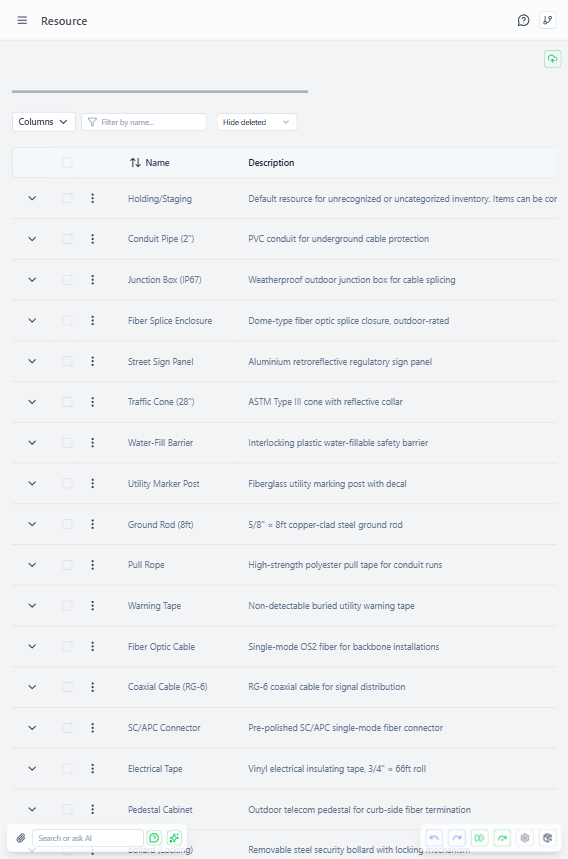 Resource detail page showing unit conversions and composite breakdown configuration
Conversions handle two scenarios in a unified structure:
Unit Conversions (Same Resource)
Convert between measurement units for the same resource.
Example: 1 foot of Cat6 Network Cable = 0.3048 meters. Add this conversion once and the system handles the calculation automatically whenever volumes are entered in feet.
Composite Breakdowns (Multiple Resources)
Break down assembled kits into component materials.
Example: A Door Installation Kit (1 unit) breaks down into: 1 tape measure, 12 mounting screws, and 0.5 litres of adhesive. When a kit is consumed, each component's stock is reduced accordingly.
Key Points:
- Unit conversions apply to the same resource in different units
- Composite breakdowns distribute one source item into multiple different resources
- Multiple outputs are supported (one source → many targets)
- Conversions are stored with the resource definition for fast lookup
Pickup Policy
Each resource has a single Pickup Policy that sets the control level for how its material may be dispensed. It replaces the older pair of on/off flags (open-pickup and requires-facilitated-pickup) with one clear choice, and it applies consistently across every flow — job QR pickup, mobile self-checkout, and person-to-person transfers.
| Policy | Who can pick up / dispense | Use for |
|---|---|---|
| Open | Anyone authenticated. The QR code is a transferable voucher — Mike can hand it to John and John's scan deducts stock, recording John as the picker. | Low-value consumables where the exact picker doesn't matter. |
| Assigned (default) | The person the material is assigned to, or staff with canFacilitatePickups. Identity is verified on every scan; self-checkout to the worker's own site is allowed. | Most materials — accountable but routine. |
| Facilitated | Only staff with canFacilitatePickups (or stockItemsUpdate). Self-checkout is blocked; transfers must be completed by a facilitator. | High-value, controlled, or regulated items where chain-of-custody matters. |
The default is Assigned — a fail-safe middle ground. A newly created resource is never wide open by accident.
When a pickup or transfer is scanned, the system validates:
- The authorization code and its expiration
- That the scanner satisfies the resource's Pickup Policy (open → anyone; assigned → the assignee or a facilitator; facilitated → a facilitator only)
- Stock availability at the source site
Use cases for Facilitated:
- High-value equipment
- Controlled materials that require accountability
- Items with regulatory requirements
Creating Resources
Access Required: resourcesCreate admin right
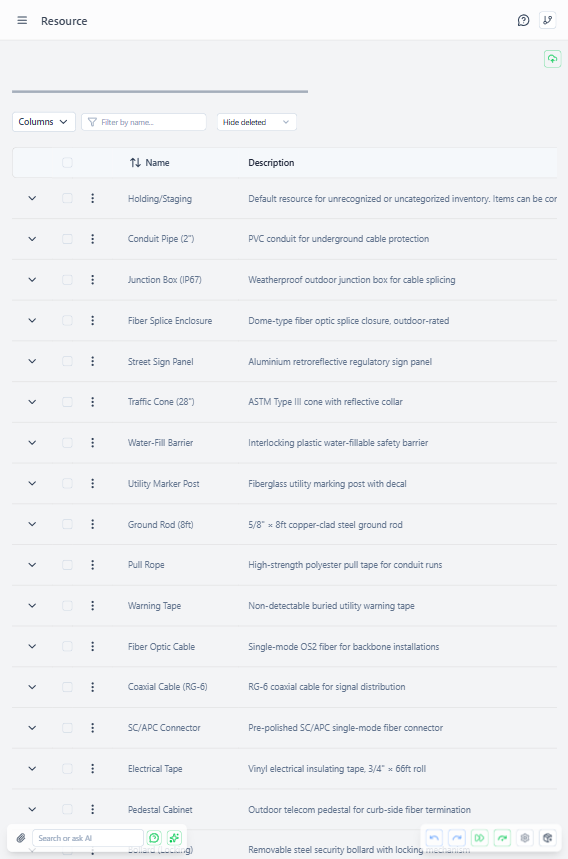 Resources page showing list of defined resources with categories and default units of measure
Common Workflow:
- Navigate to administration → Resources
- Click "Add Resource"
- Fill basic information (name, category, default UOM)
- Set inventory control fields (consumable, Pickup Policy)
- Add conversions if needed (unit conversions or kit breakdowns)
- Save
Best Practices:
- Use consistent naming conventions (e.g., "Cat6 Cable" not "network wire cat 6")
- Set realistic minimum stock levels for consumables
- Add conversions early (harder to retrofit after stock items exist)
- Group related resources with category field
Demand and Supply Visibility
The resources page can show two aggregated columns alongside each catalog entry:
- Demand — total volume of this resource declared across all live job
resources[]entries. Tells you how much is needed for planned field work. - Supply — total volume across all live stock items for this resource. Tells you how much is physically available across all sites.
To populate these columns, click Fetch demand/supply in the filter bar. The system reads every resource currently visible in the table and queries both the job and stock-item collections in parallel. A spinner on the button shows while the request is in flight.
Why on-demand rather than always-on?
Aggregating across the full job and stock-item sets on every page load would be expensive at scale. Fetching on request means you see the numbers when you need them — capacity planning, pre-project checks, procurement calls — without making every routine browse slow.
Stock item detail:
The stock item detail page automatically shows Total demand and Total supply for the resource that stock item belongs to, without requiring a manual fetch. Because you're already looking at a specific item, the query is cheap (one resource ID).
Reading the gap:
If Demand exceeds Supply, procurement needs to act before field teams can pick up materials. If Supply exceeds Demand, you have buffer — or excess stock that could be transferred elsewhere. Neither column accounts for reserved or in-transit materials; treat the gap as a signal for investigation, not a hard block.
Resource Usage
Resources appear in:
- Jobs - Required materials for work (multi-resource support, optional)
- Stock Items - Physical inventory of the resource at sites
- Transactions - Movement and consumption records
- Reports - Actual consumption during field work
- Assignments - Resource targets (goals, not reservations)
Resources do NOT reserve inventory - they define what can be tracked. Stock items represent actual physical inventory.